

Clear cookies and site data in Firefox
Welcome to CookiePal! This guide will walk you through cookies and site data in Firefox

A step-by-step guide to managing and deleting cookies in Firefox
Cookies are small files stored on your computer by websites you visit, used to keep track of your preferences and activity. While cookies can enhance your browsing experience, they can also pose privacy concerns. This guide will show you how to delete cookies on Firefox, ensuring your data remains private and your browser runs efficiently.
Understanding Cookies
Cookies are essential for many functions, such as remembering login details and personalising web content. However, over time, cookies can accumulate and may affect your browser’s performance. Deleting cookies can help maintain your privacy and improve your browser’s speed.
Why you should Delete Cookies
- Privacy Protection: Removing cookies can prevent websites from tracking your online activities.
- Enhanced Security: Deleting cookies can reduce the risk of tracking and security breaches.
- Improved Performance: Clearing cookies can speed up your browser and free up storage space.
How to Delete Cookies on Firefox
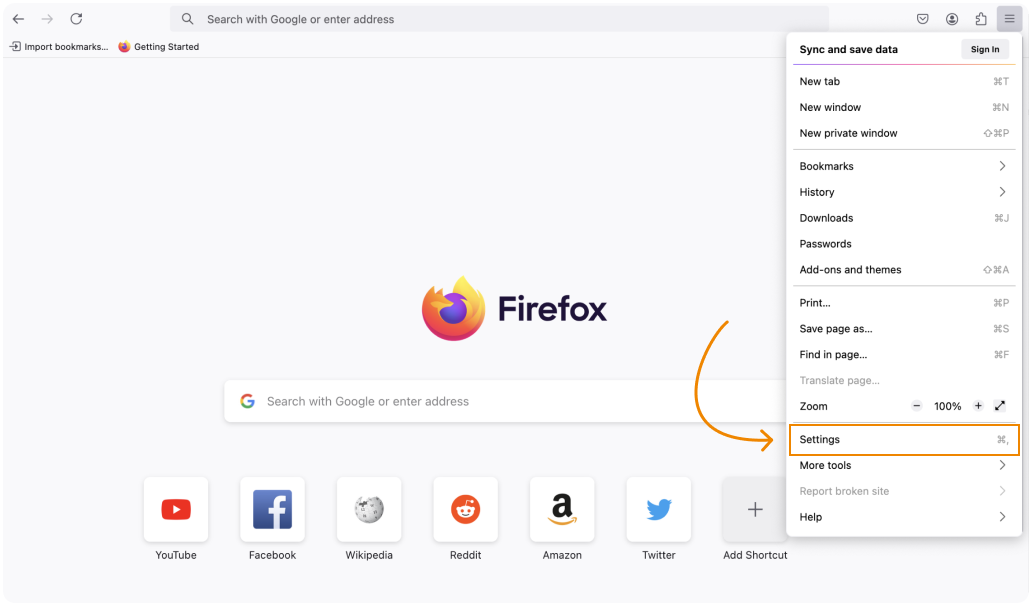
- Klicka på menyknappen (tre vågräta streck) uppe till höger i Firefox.
- Välj "Inställningar".
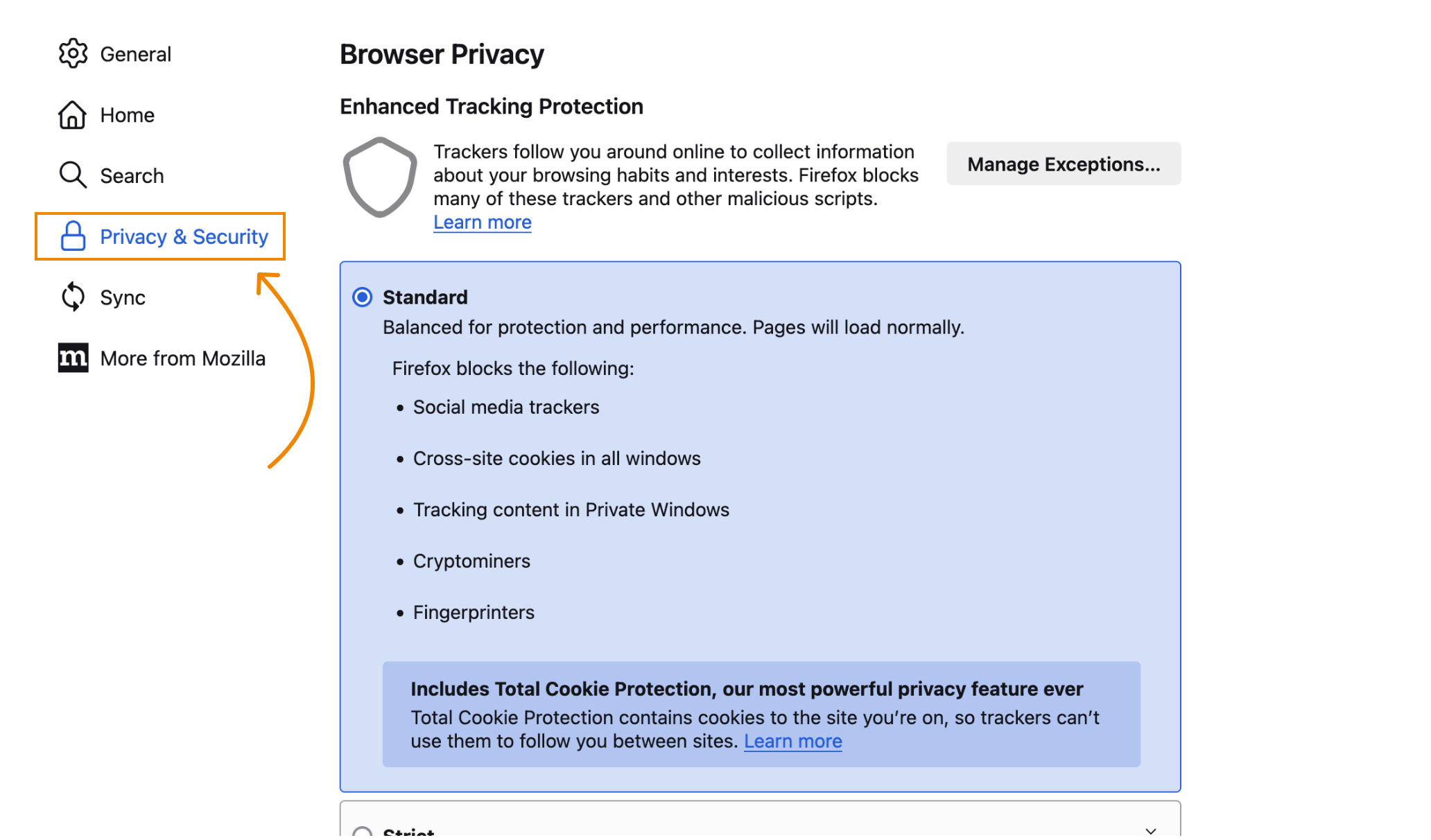
- Klicka på "Integritet & säkerhet" i menyn till vänster.
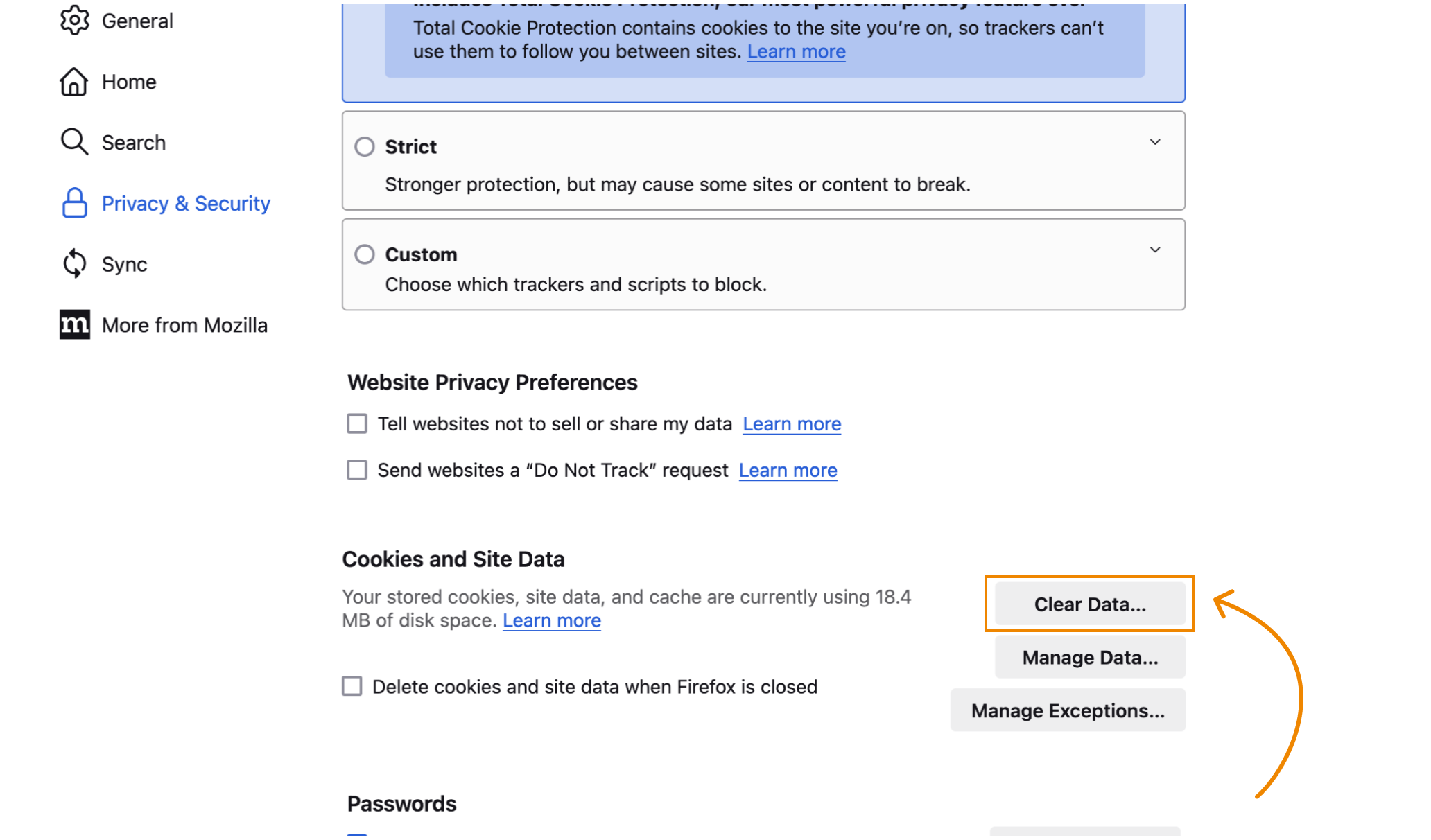
- Markera rutan för "Cookies och webbplatsdata" i dialogrutan som visas.
- Du kan också välja "Cachat webbinnehåll" för att frigöra mer utrymme.
- Klicka på "Rensa".
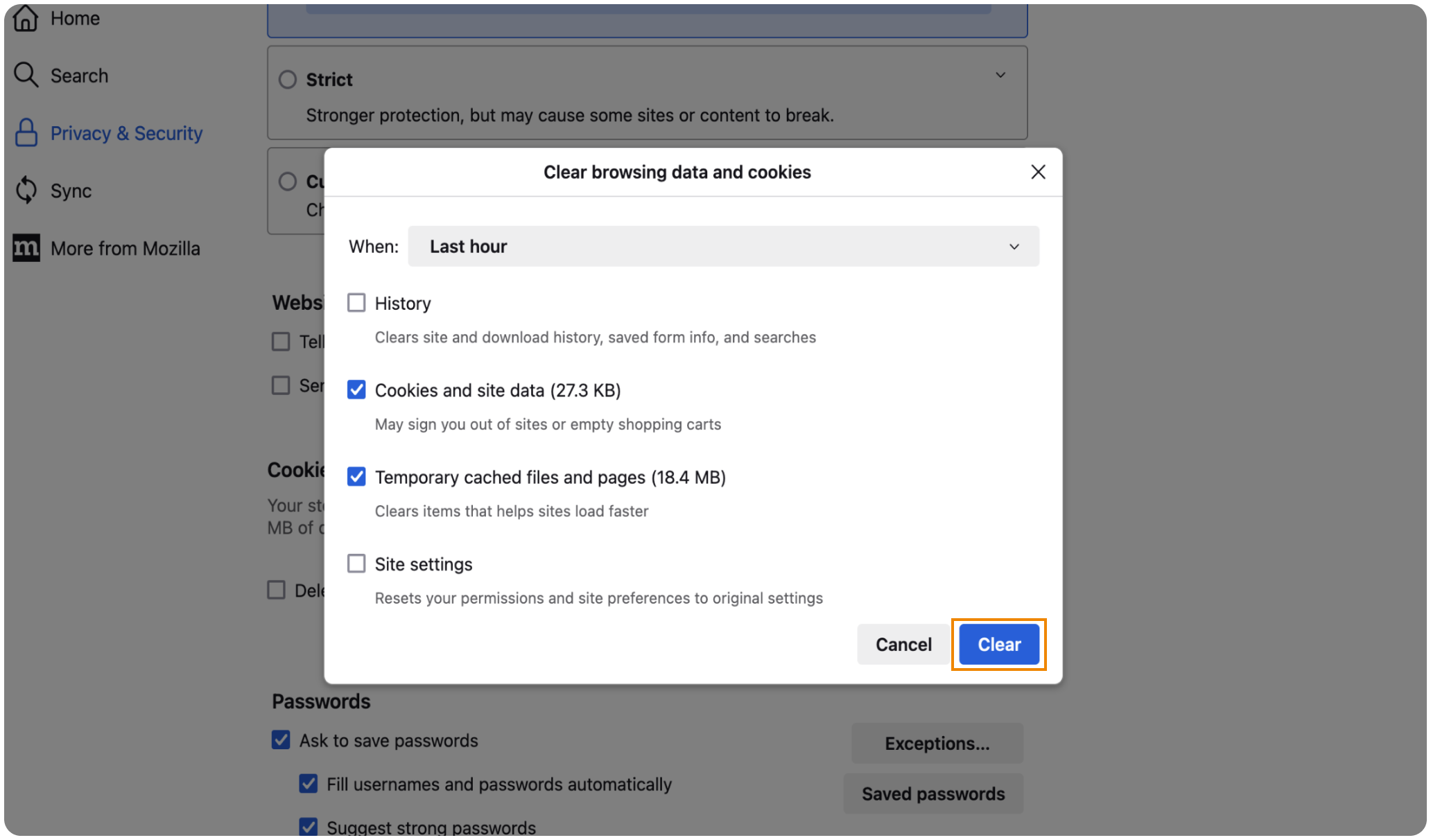
- Firefox ber dig bekräfta att du vill rensa datan.
- Klicka på "Rensa nu" för att ta bort den valda datan.
Managing Cookies Settings
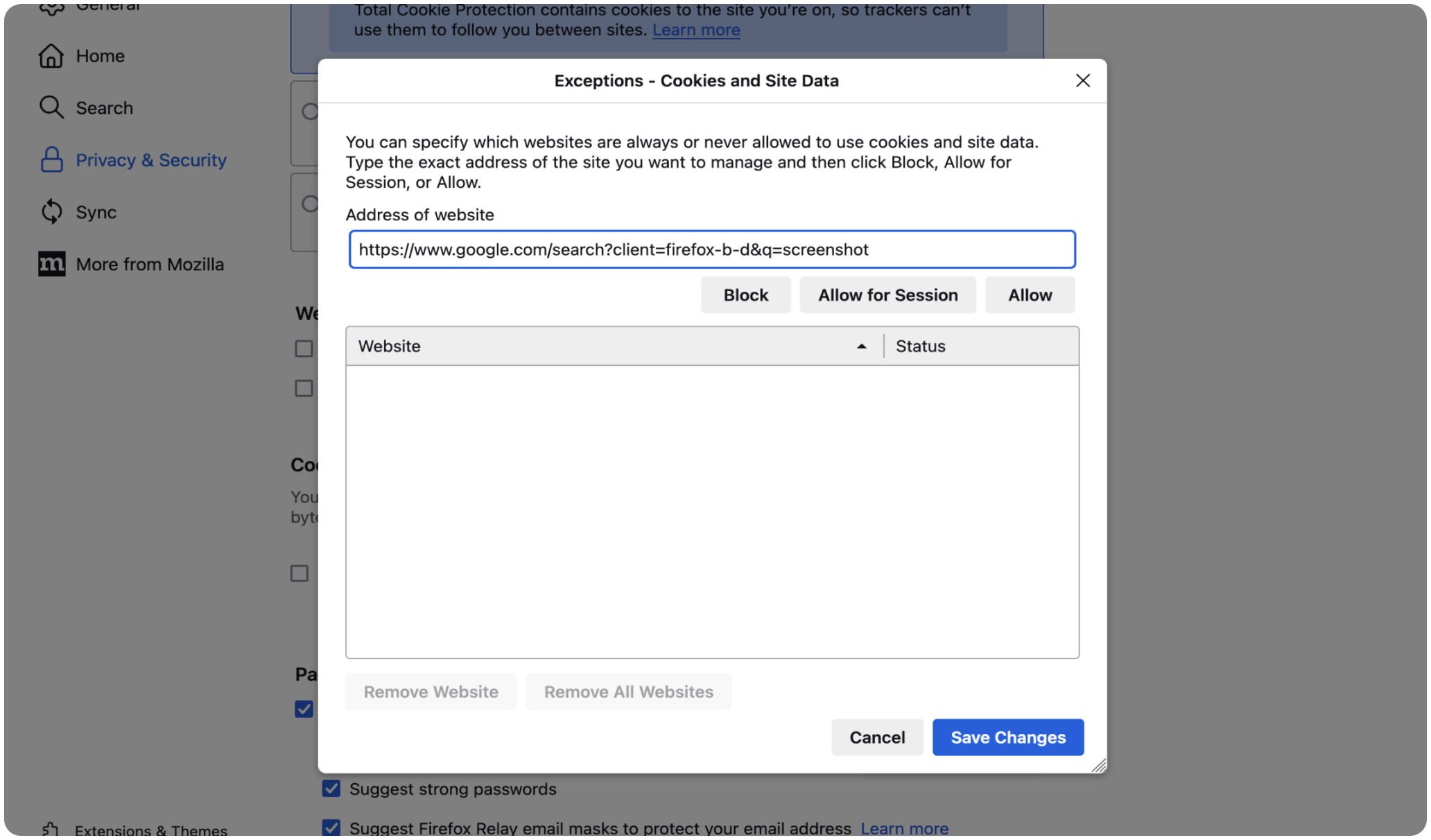
To prevent websites from storing cookies in the future, you can adjust your cookie settings:
- Gå till underavsnittet "Cookies och webbplatsdata" i avsnittet "Integritet & säkerhet".
- Välj "Hantera undantag..." för att ange vilka webbplatser som får spara cookies.
- Välj "Blockera cookies och webbplatsdata (kan göra att webbplatser slutar fungera)" för att blockera alla cookies.
Regularly deleting cookies can help protect your privacy, improve security, and ensure your browser performs optimally. By following this guide, you can easily manage and delete cookies in Firefox. For more detailed information, visit the Mozillas supportsida.