

Agencies
Onboard and manage your clients from the agency dashboard.
Open a Client's Account and Install the Banner
Sign in to a client's CookiePal account to set up and install their banner.
Table of contents
back
to the top
Open the Account
Open "Clients" in the sidebar. Find the domain and click "Open account". The same button is on every row of the "Needs attention" list.

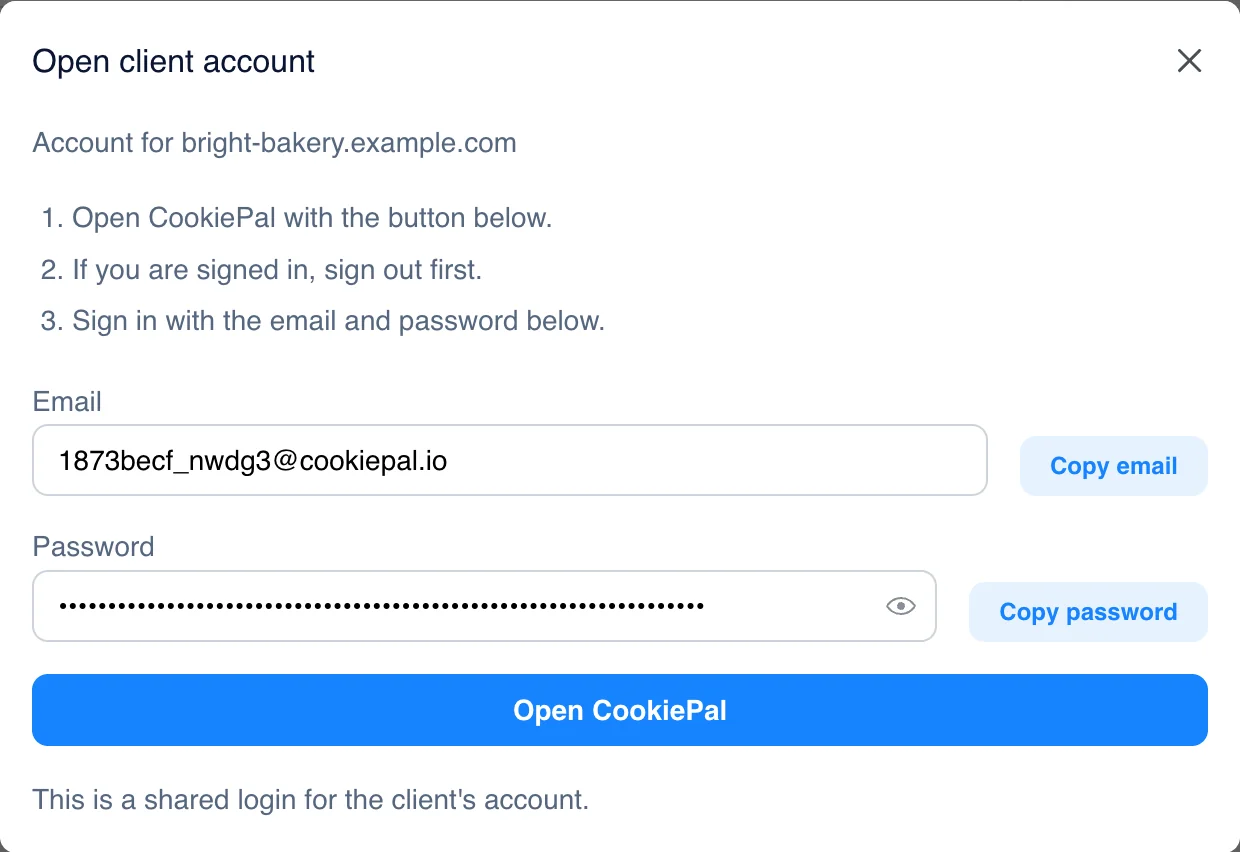
Sign In to the Client Account
The window shows the email and password for the client's account.
1. Copy the email and the password.
2. Click "Open CookiePal".
3. If you are already signed in to CookiePal, sign out first.
4. Sign in with the details you copied.
This is a shared login for the client's account, so keep it within your team.
Set Up and Install the Banner
You are now in the client's CookiePal account. Create the banner, then install it on the client's website by following the installation guide for their platform.
Back in your agency dashboard, the domain's Banner status moves to "Waiting for verification" while we check the site, then to "Live".