

Features
Utilize advanced features and integrate CookiePal with other tools.
Google Consent Mode for Google Tag Gateway
Learn what Google Tag Gateway is and how it relates to first-party Google tag delivery.
Table of contents
back
to the top
Google Tag Gateway (GTG) is a first-party setup for serving Google tags through your website domain. This guide explains the core concept before moving into the setup details.
What is Google Tag Gateway (GTG)?
Google tag gateway for advertisers (GTG) is a first-party tagging setup that lets you serve Google tags from your own website domain instead of loading them directly from a Google domain.
In a standard Google tag setup, the browser requests the Google tag from Google and sends measurement requests directly to Google's services. With GTG, your website loads the tag through your first-party domain, and some measurement requests are routed through that domain before being forwarded to Google.
GTG can be configured using infrastructure such as a CDN, load balancer, or web server. Its purpose is to support first-party measurement by keeping the tag delivery path closer to your website while still connecting the measurement data to supported Google products.
For setup instructions, see Google's GTG setup guide. You can choose Self service for a manual setup or In-UI based on your implementation needs.
Example If a Google Analytics request normally uses this endpoint:
1https://analytics.google.com/g/collectWith GTG, the request can be served through your own first-party domain instead:
1https://yourdomain.com/metrics/ga/g/cGTG consent impact
GTG changes how Google tag requests are routed, but it does not replace consent management. Your website still needs to collect the visitor's consent choice and pass that choice to Google tags through Google Consent Mode.
What changes: The request may appear under your own domain, such as https://yourdomain.com/metrics/ga/g/c, instead of going directly to a Google endpoint. This is the first-party delivery path provided by GTG.
What does not change: The consent state still controls what supported Google tags can do. If analytics or advertising storage is denied, consent-aware Google tags must continue to respect that denied state.
For example, if a visitor does not allow analytics cookies, GTG should not be treated as permission to set analytics cookies. The request path may use your domain, but the tag behavior still depends on the consent signal sent by your CMP or consent setup.
One-click CDN injection and load order
Some CDN tools offer a one-click GTG setup that injects or rewrites the Google tag through the CDN. This can be convenient because you may not need to edit your website code directly.
The trade-off is load order control. When the CDN adds the tag at the edge, the tag may not appear in the same place as the scripts you manage in your page template or Google Tag Manager workspace.
For consent setups, the default consent state should be available before Google tags send measurement data. If the CDN-injected tag starts too early, you may see consent timing issues, such as default consent being set too late.
After enabling one-click CDN injection, verify the implementation as explained in the Verify GCM implementation guide. Confirm that the consent default is set first, the banner updates consent after the visitor chooses, and GTG requests are routed through your first-party path.
If you need strict control over script placement, use a manual GTG setup or adjust the CDN injection rule so it does not run before your consent setup.
Verify GTG enrollment
You can verify GTG enrollment from the Google interface, Tag Assistant, and direct manual setup health checks.
Google interface: In Google Tag Manager, open your GTM container, then go to Admin > Google tag gateway. Confirm that Google Tag Gateway is enabled and that the configured domain/path matches your expected GTG setup.
![[Google interface:bold]: In Google Tag Manager, open your GTM container, then go to [Admin > Google tag gateway:bold]. Confirm that Google Tag Gateway is enabled and that the configured domain/path matches your expected GTG setup.](/_next/static/media/gtm-with-google-tag-gateway-active.409e95cf.png)
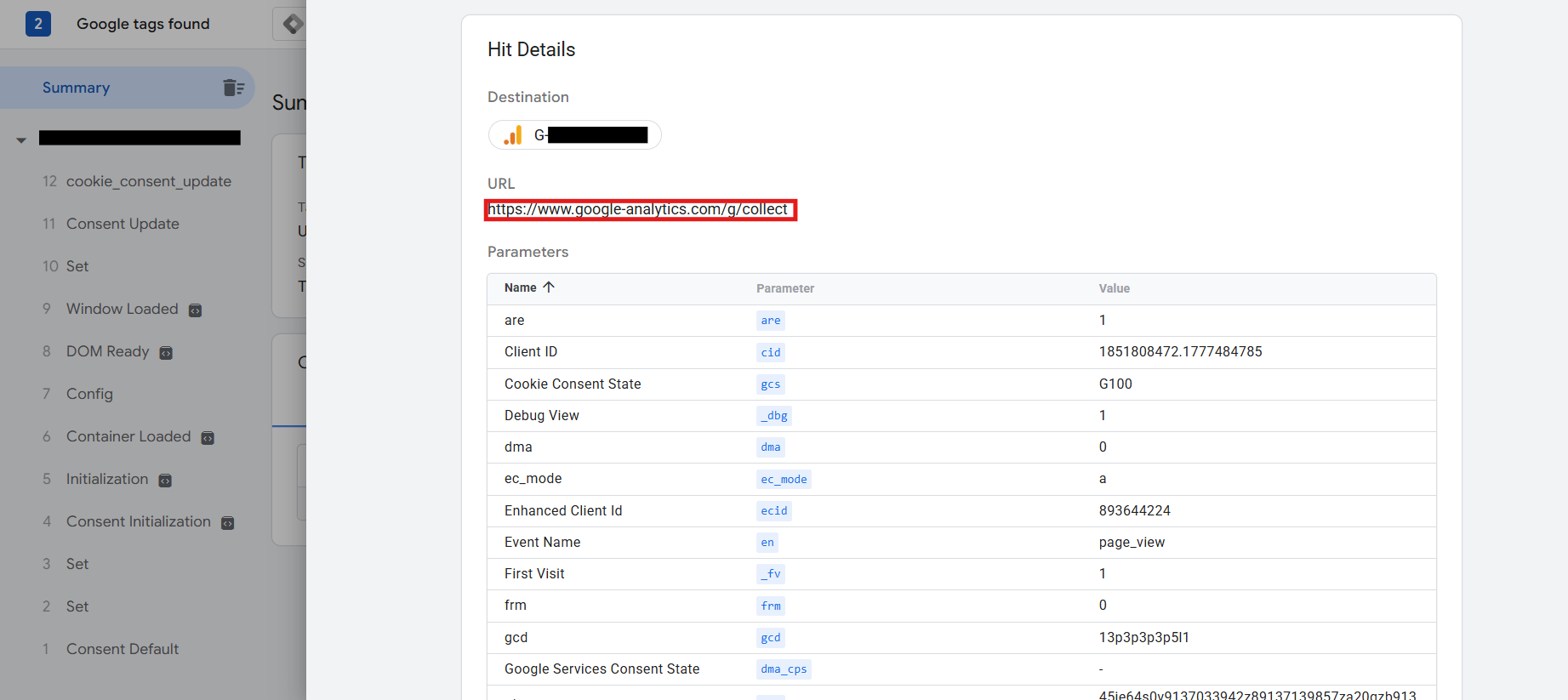
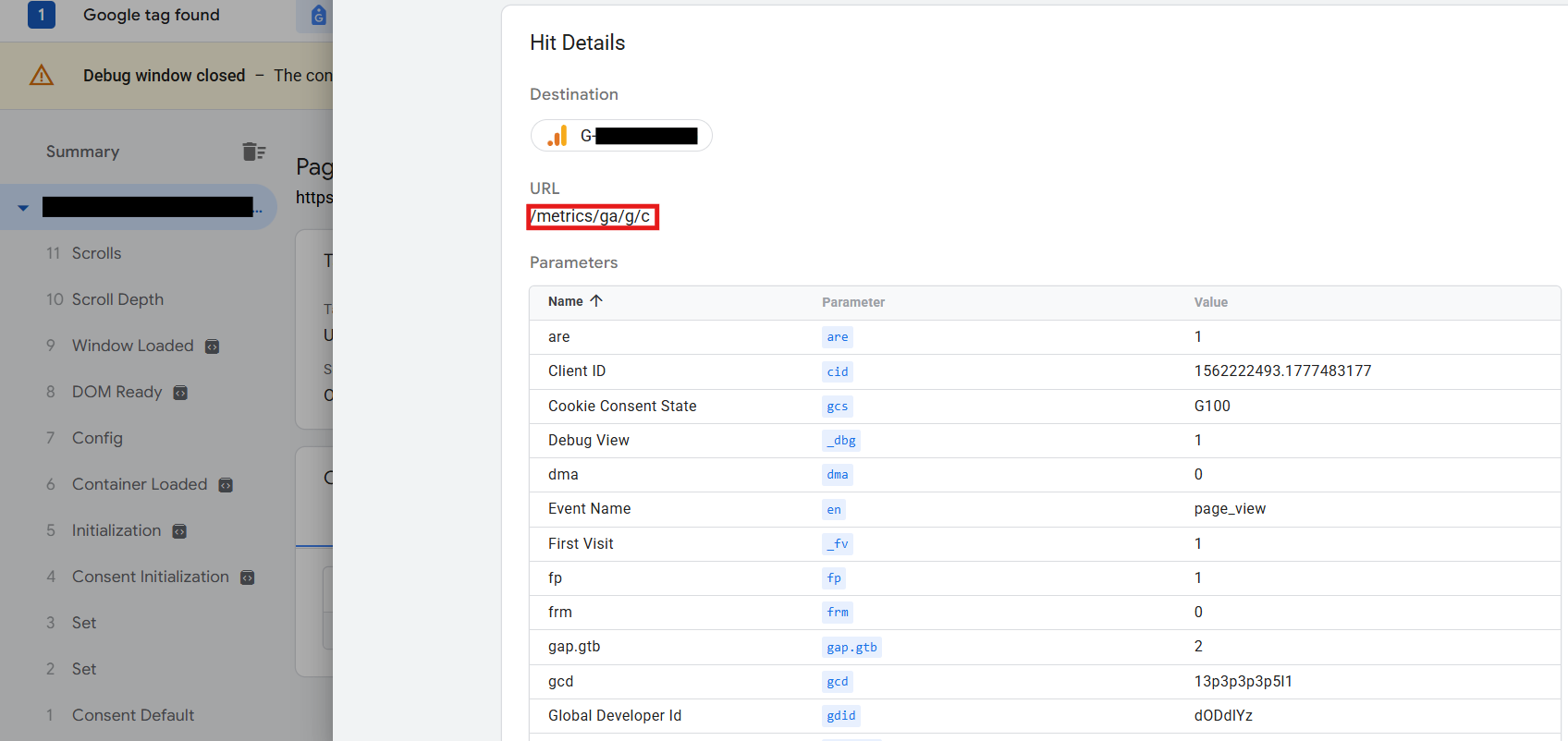
Tag Assistant: Open Google Tag Assistant, preview your container, and navigate through your website to trigger Google tag requests. In Summary > Output > Hits Sent, check the hit URL.
Without GTG, the hit URL can appear as a direct Google Analytics endpoint, such as https://www.google-analytics.com/g/collect.
With GTG, the hit URL should use your first-party measurement path, such as /metrics/ga/g/c.
Manual setup checks: If you configured GTG manually, replace yourdomain.com with your domain and replace /metrics with your configured tag serving path. The examples below use /metrics, but your setup may use a different path.
1https://yourdomain.com/metrics/healthy1https://yourdomain.com/metrics/?validate_geo=healthyBoth manual checks should return ok. The first URL confirms the GTG path is reachable. The second confirms the setup is also passing the expected geographic information.
Late consent signal detected after GTG enrollment
If GTG enrollment is verified but a late consent signal is detected, the GTG routing is usually not the main issue. The issue is typically that Google tags are receiving or acting on consent information too late in the page lifecycle.
See the Verify GCM implementation guide to learn how to verify that GCM is correctly implemented.
Solution 1 - Adopt U+C (Advanced Consent Mode)
For verified GTG-enabled tags, U+C is the recommended mechanism because it is compatible with both CDN-based and manual GTG setups. Use Advanced Consent Mode so Google tags can load with the correct default consent state already available, then receive the consent update after the visitor makes a choice.
To enable Advanced Consent Mode in CookiePal, see the GCM advanced consent mode section.
If enabling Advanced Consent Mode is not enough, also see the Default command inline implementation guide to understand how to implement global default consent yourself.
Note: Keep the Advanced Consent Mode option enabled.
Make sure the CookiePal banner or the global default consent command runs before any CDN-injected Google tag or measurement request. If your CDN injection tool cannot guarantee that order, use a manual setup or adjust the injection rule so consent defaults run first.
Enable Data Transmission Controls based on the level of pre-consent data transmission your organization allows. This helps control what can be sent before the visitor grants consent.
Configure Global Consent Defaults according to your needs, such as setting analytics and advertising storage to denied by default until the visitor provides consent.
Solution 2 - Migrate tags into GTM and deploy GTM via GTG
Take the Google tags that are currently implemented on your website with GTG and move them into a single Google Tag Manager container where possible.
Then deploy the GTM container through Google Tag Gateway. This keeps the GTG first-party measurement path while giving you one place to manage Consent Initialization, tag triggers, and tag sequencing.
In this setup, make sure the CookiePal CMP tag or global default consent command fires before any Google Analytics, Google Ads, or other measurement tags inside the container. For CookiePal GTM setup guidance, see the GTM Setup Guide.
Remove or disable duplicate Google tags that still run outside GTM after the migration. Leaving old hardcoded or CDN-injected tags active can continue to produce late consent signals even if the GTM container is configured correctly.
Solution 3 - Set up GTG manually with controlled script order
If automatic CDN injection does not give you enough control over when the Google tag loads, set up GTG manually instead. In this approach, the customer configures GTG and updates the website snippet directly in the site code.
Manual setup lets you decide the exact script import order. The CookiePal banner or global default consent command should run first, followed by the GTG-enabled Google tag or GTM snippet. For more instructions, see the manual GTG setup guide.
This is useful when a CDN-injected tag starts before consent defaults are available. By placing the snippet manually, you can keep the first-party GTG measurement path while making sure consent is initialized before Google measurement requests are sent.
After changing these settings, verify the implementation again using the Verify GCM implementation guide. Confirm that the default consent state is available before Google tags send hits, and that the consent update is recorded after the banner interaction.