

Instalación
Instrucciones de instalación y configuración
Cómo añadir un banner de cookies en un sitio web PrestaShop
En esta guía te mostraremos la instalación de CookiePal en un sitio web PrestaShop
Índice
Volver
Volver arriba
CookiePal te ayuda a garantizar que tu aplicación PrestaShop cumpla con el GDPR, CCPA, LGPD y otras leyes de privacidad mediante la gestión del consentimiento de cookies de los usuarios. Esta guía te guiará por los pasos para integrar CookiePal con tu aplicación PrestaShop.
Crear una cuenta CookiePal
If you do not yet have a CookiePal account or have not yet configured your banner, follow the steps below.
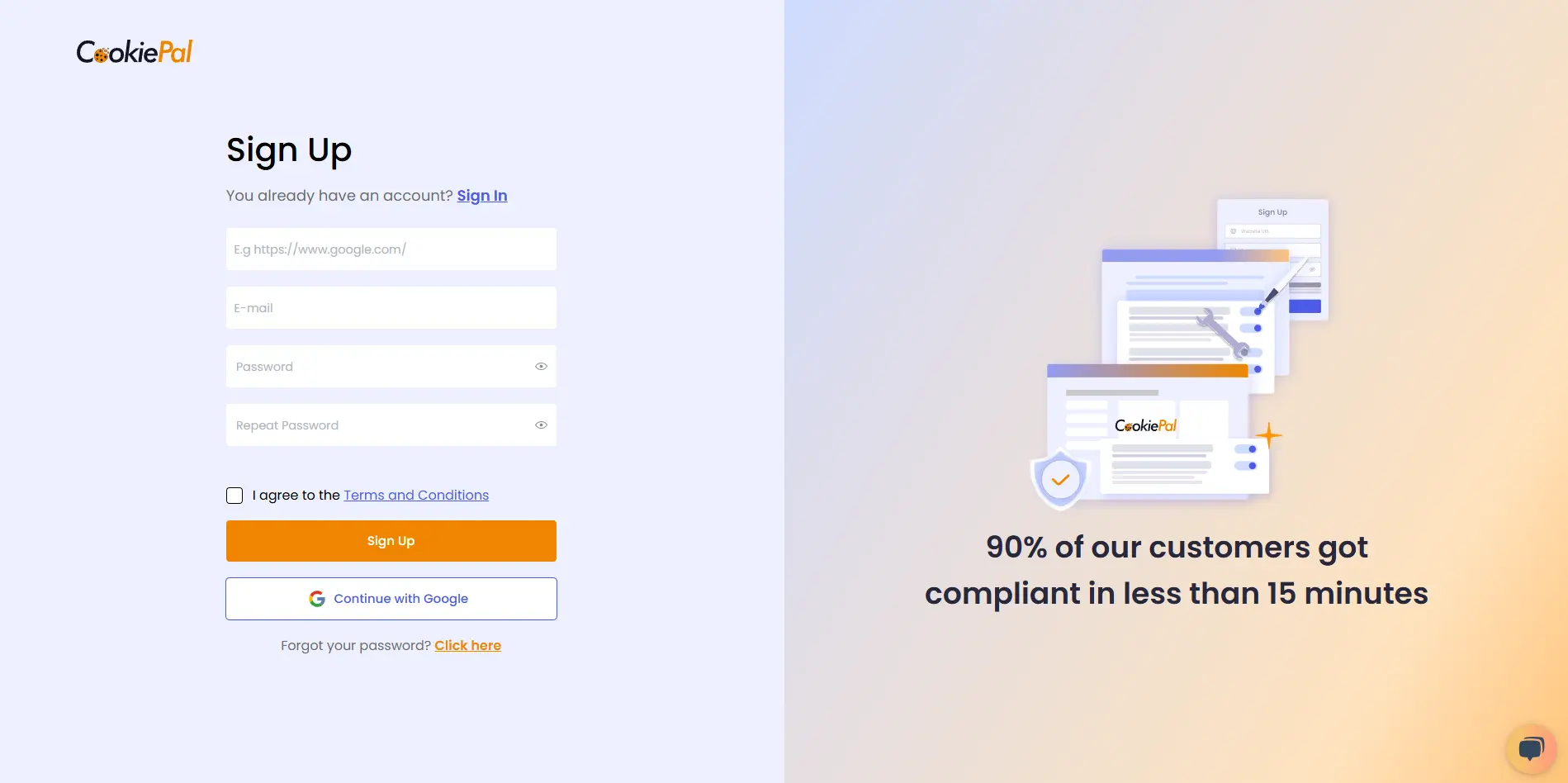
1. Sign up for CookiePal.
2. After confirming your email, you will be directed to the setup screen. Choose your setup option.
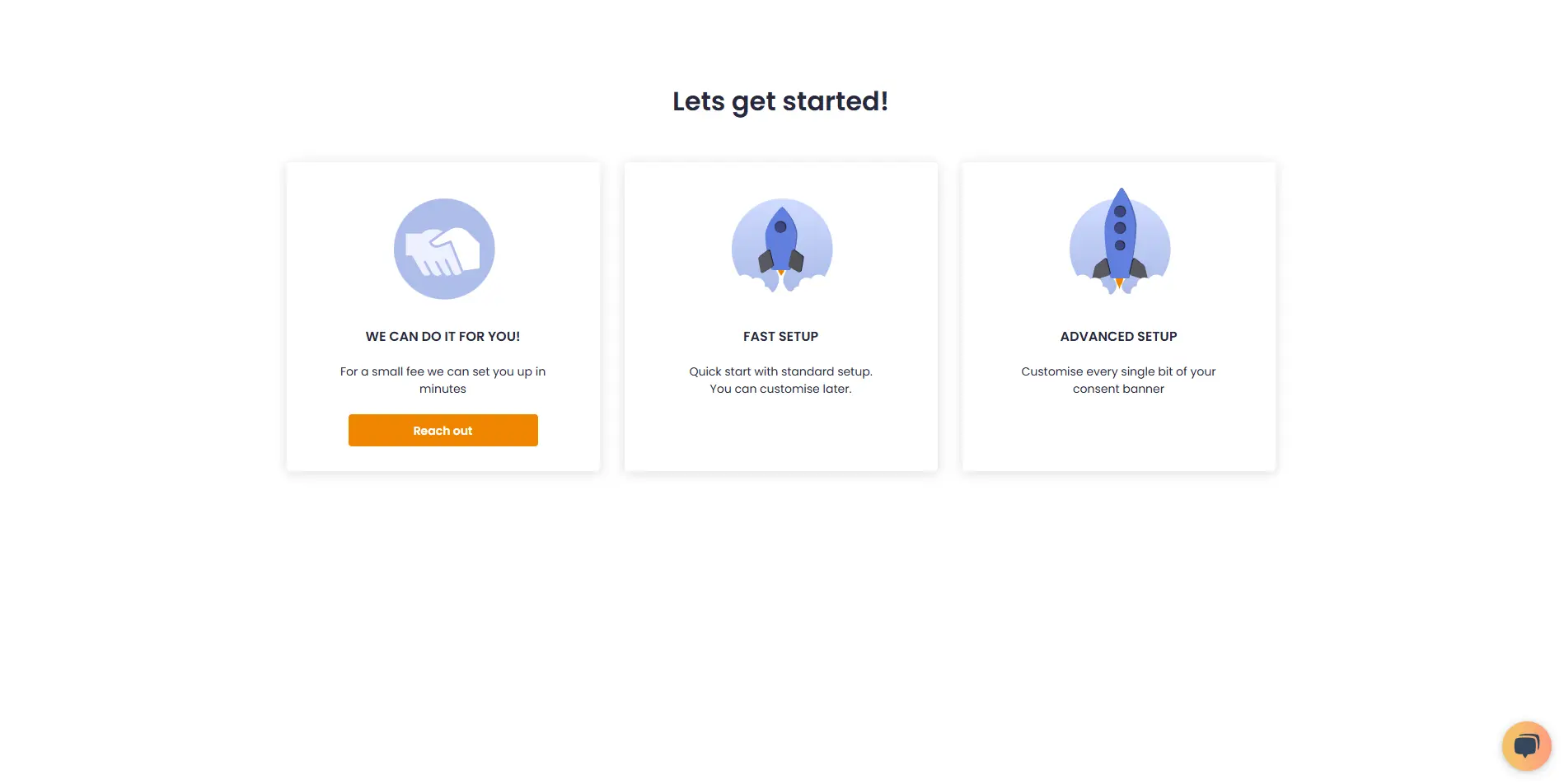
• We can do it for you!: Select this option to let our team handle the setup for a small fee.
![• [We can do it for you!:bold]: Select this option to let our team handle the setup for a small fee.](/_next/static/media/we-can-do-it-for-you.e1c36463.webp)
• Fast Setup: Quickly configure your banner by selecting its position and colors. You can still customise other details later in customisations.
![• [Fast Setup:bold]: Quickly configure your banner by selecting its position and colors. You can still customise other details later in [customisations:https://app.cookiepal.io/customisation].](/_next/static/media/customise-banner-colors-and-positions.5ac76d26.webp)
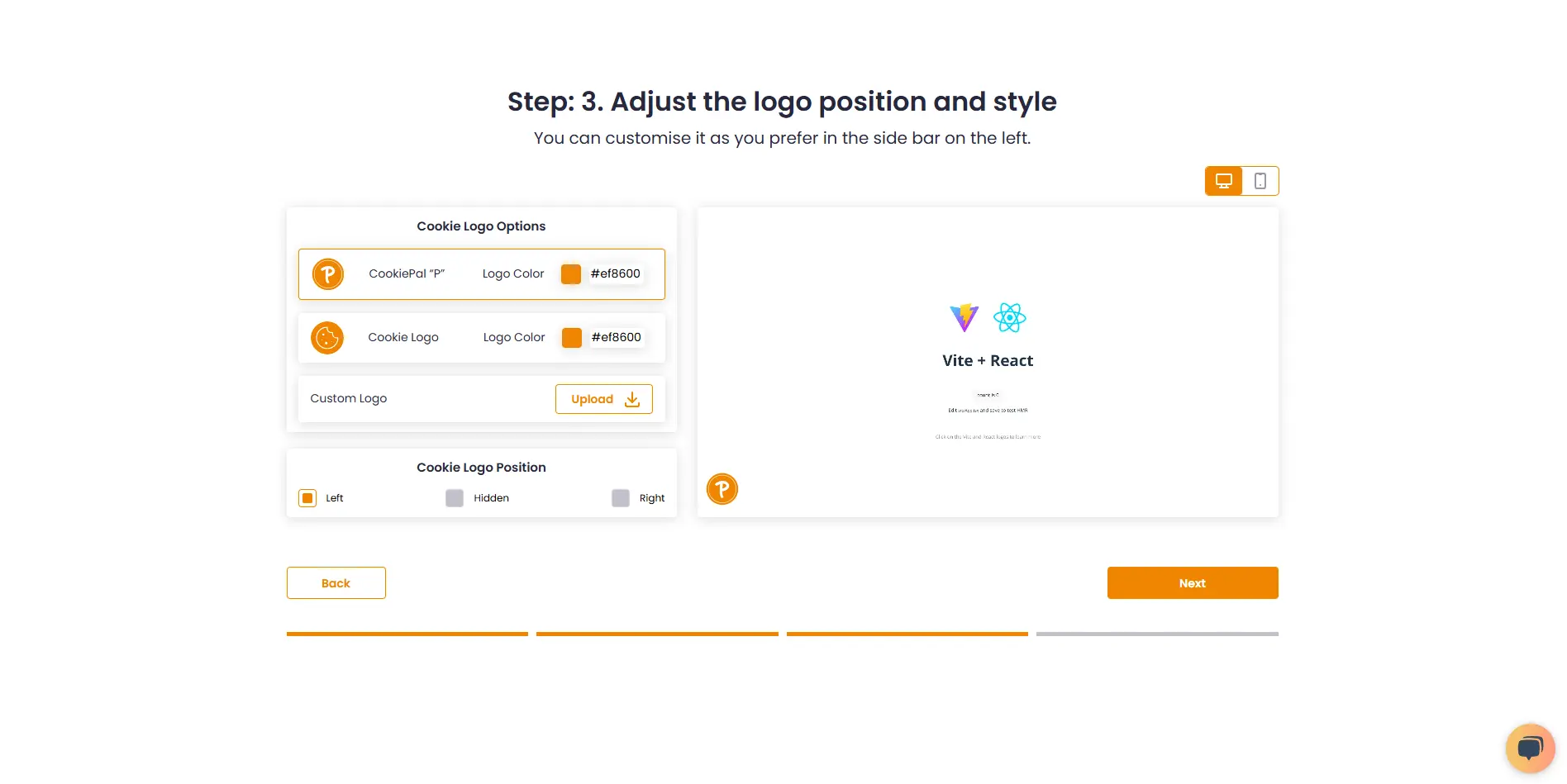
• Advanced Setup: Customise every detail of your banner. In addition to position and colors, you can edit the content and default language, and adjust the logo's colors and position.
![• [Advanced Setup:bold]: Customise every detail of your banner. In addition to position and colors, you can edit the content and default language, and adjust the logo's colors and position.](/_next/static/media/customise-banner-content.49d06789.webp)
4. Choose your preferred installation method and complete the setup.
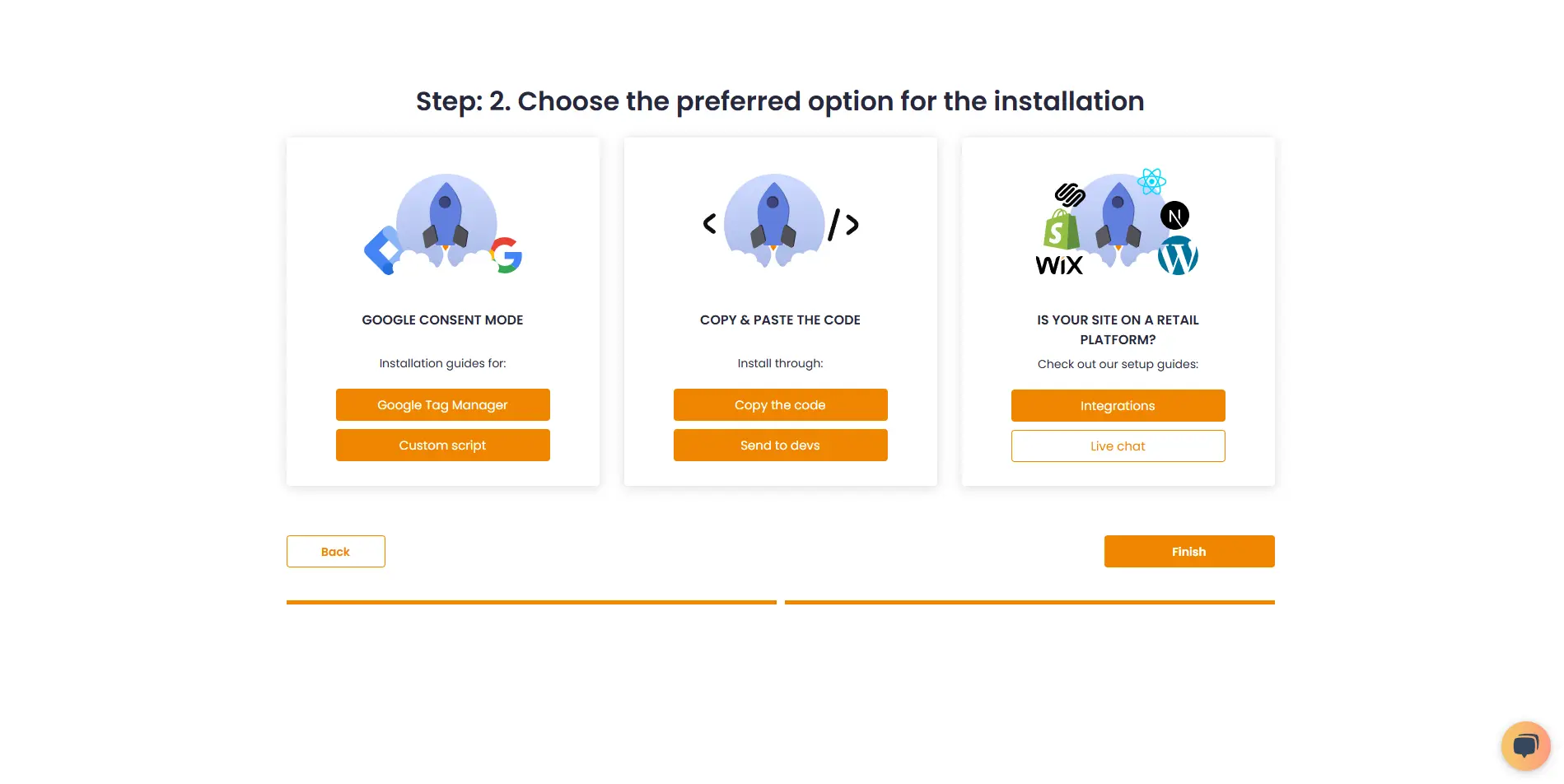
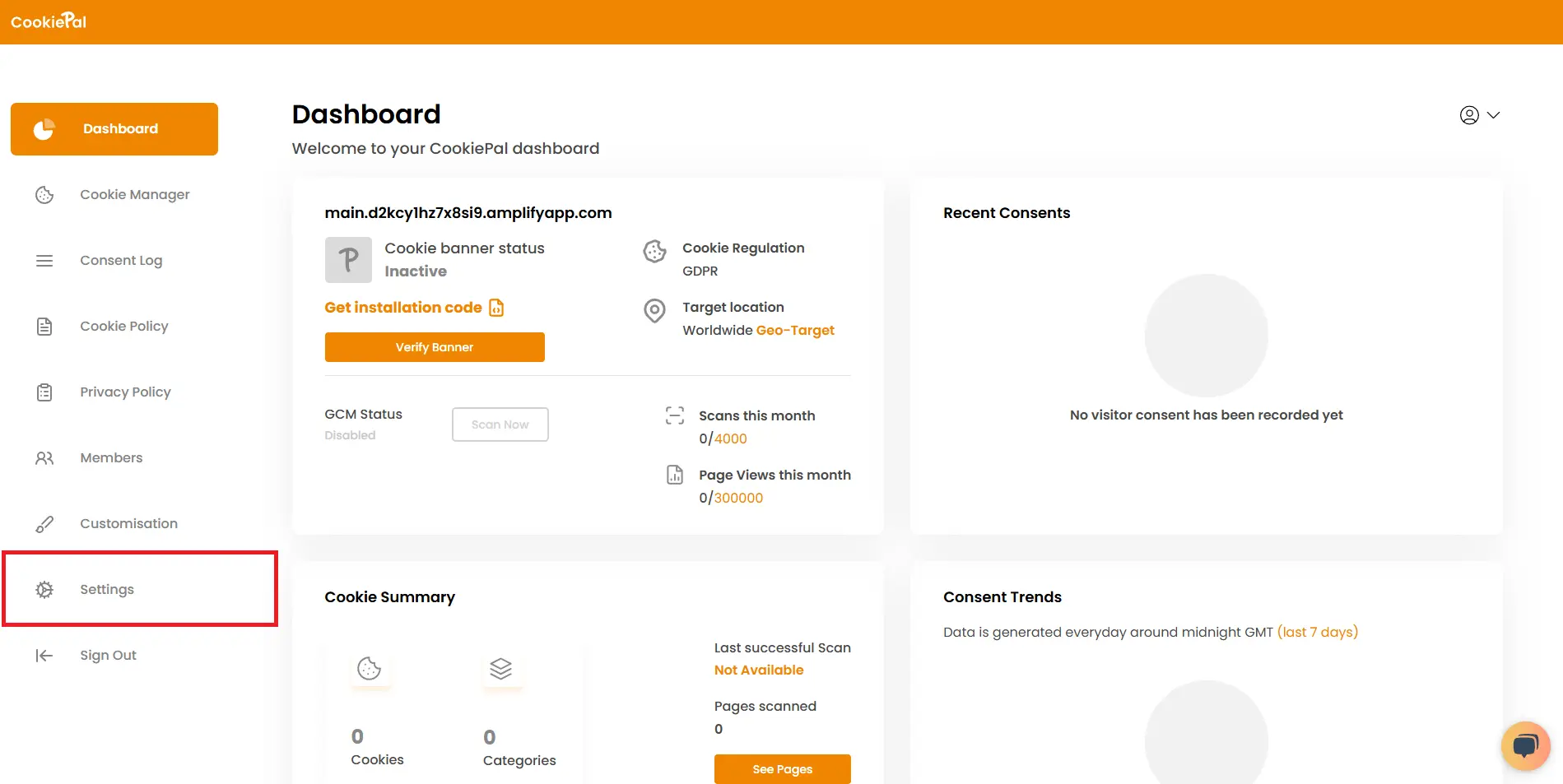
7. Ve a "Configuración".
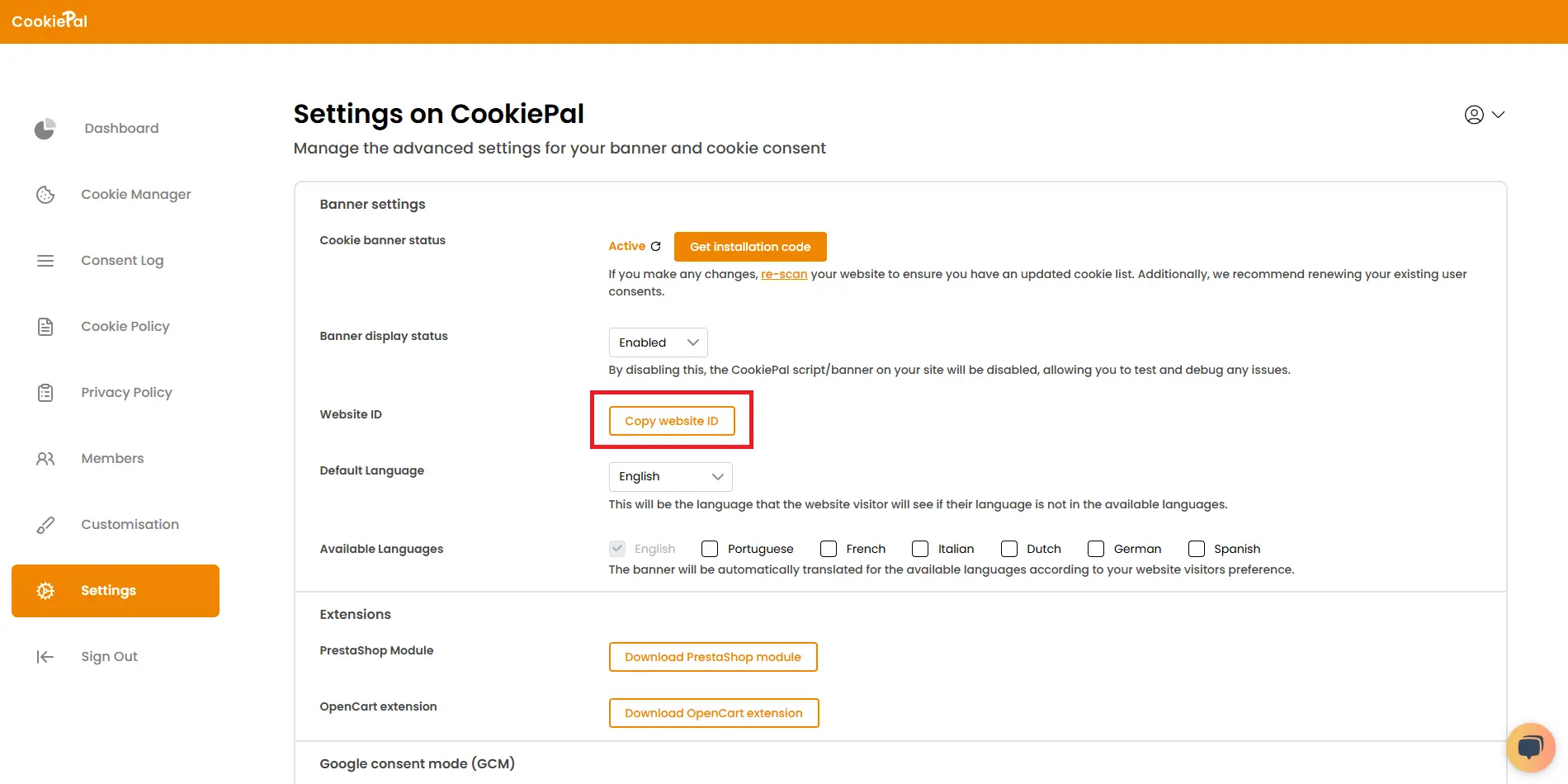
8. Copia el ID de tu sitio web.
Descarga el módulo PrestaShop
En tu configuración de CookiePal, descarga el módulo PrestaShop directamente o usa el enlace Descargar módulo PrestaShop para comenzar.
![En tu configuración de CookiePal, descarga el módulo PrestaShop directamente o usa el [enlace Descargar módulo PrestaShop:https://cookiepal-assets.s3.us-east-1.amazonaws.com/cookiepal.zip] para comenzar.](/_next/static/media/download_prestashop_extension.cfc88d90.webp)
Configura tu módulo
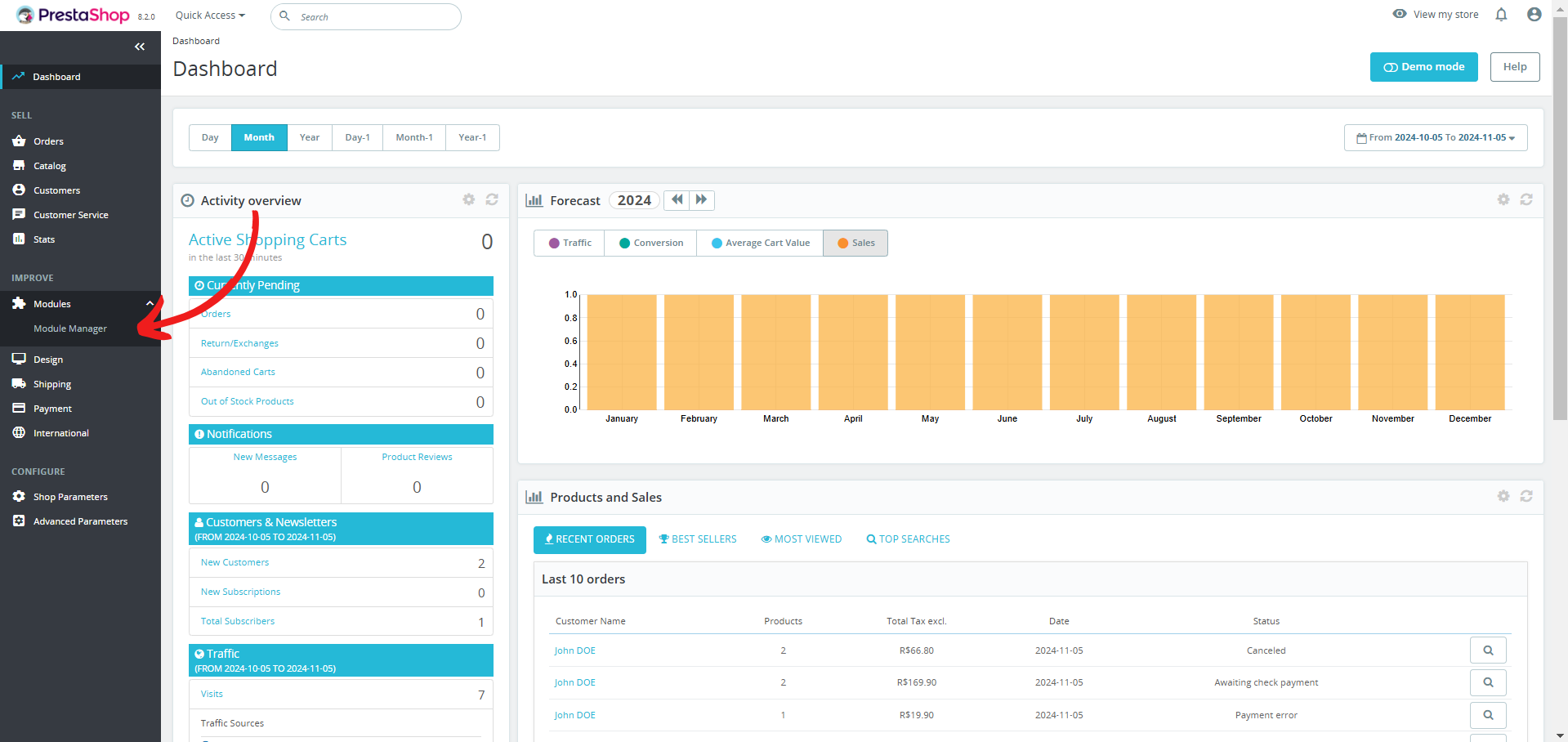
Ve a Configuración: en el panel de PrestaShop, haz clic en "Administrador de módulos".
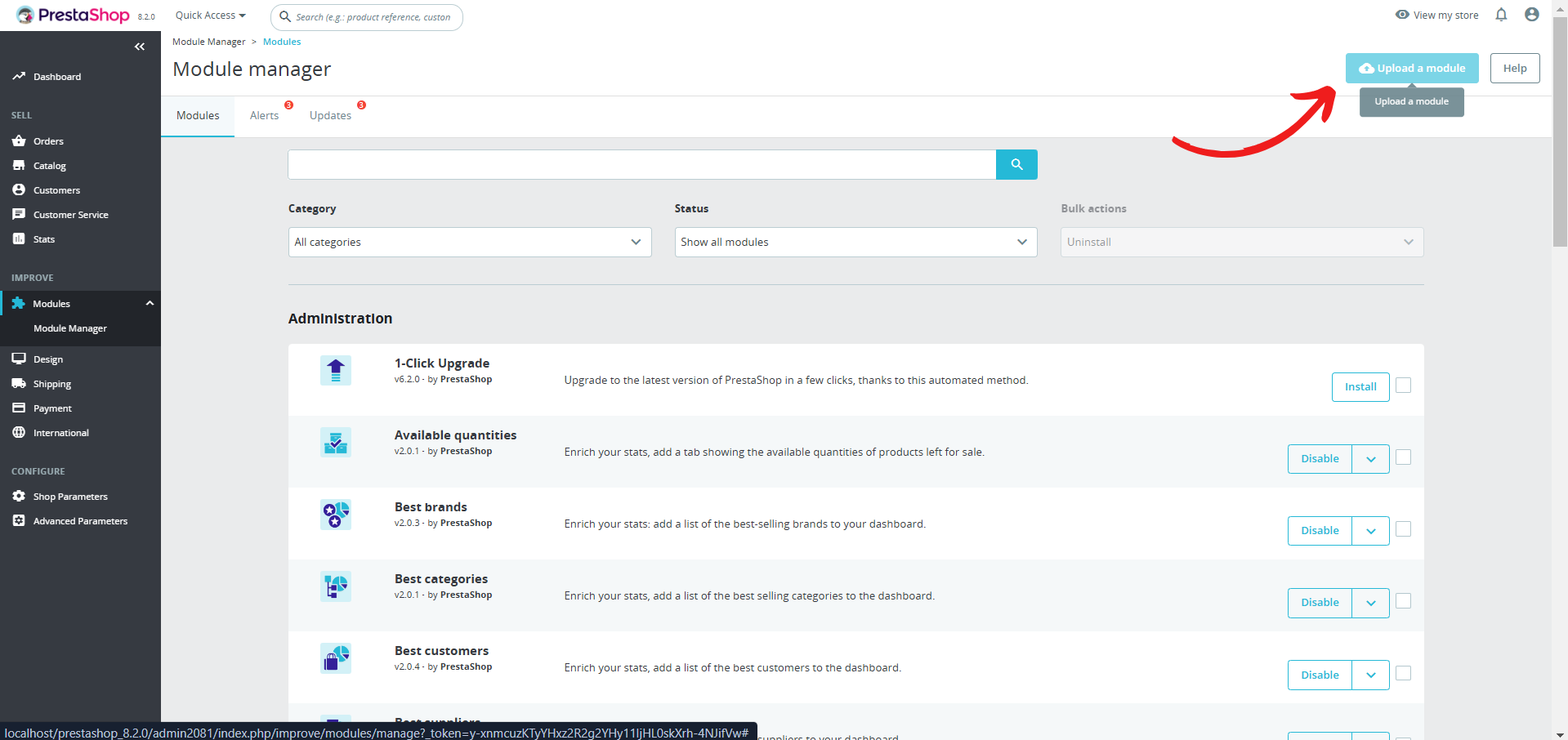
Cargar módulo CookiePal: Haz clic en "Cargar módulo".
Colocar módulo: coloca el módulo CookiePal en el área de carga.
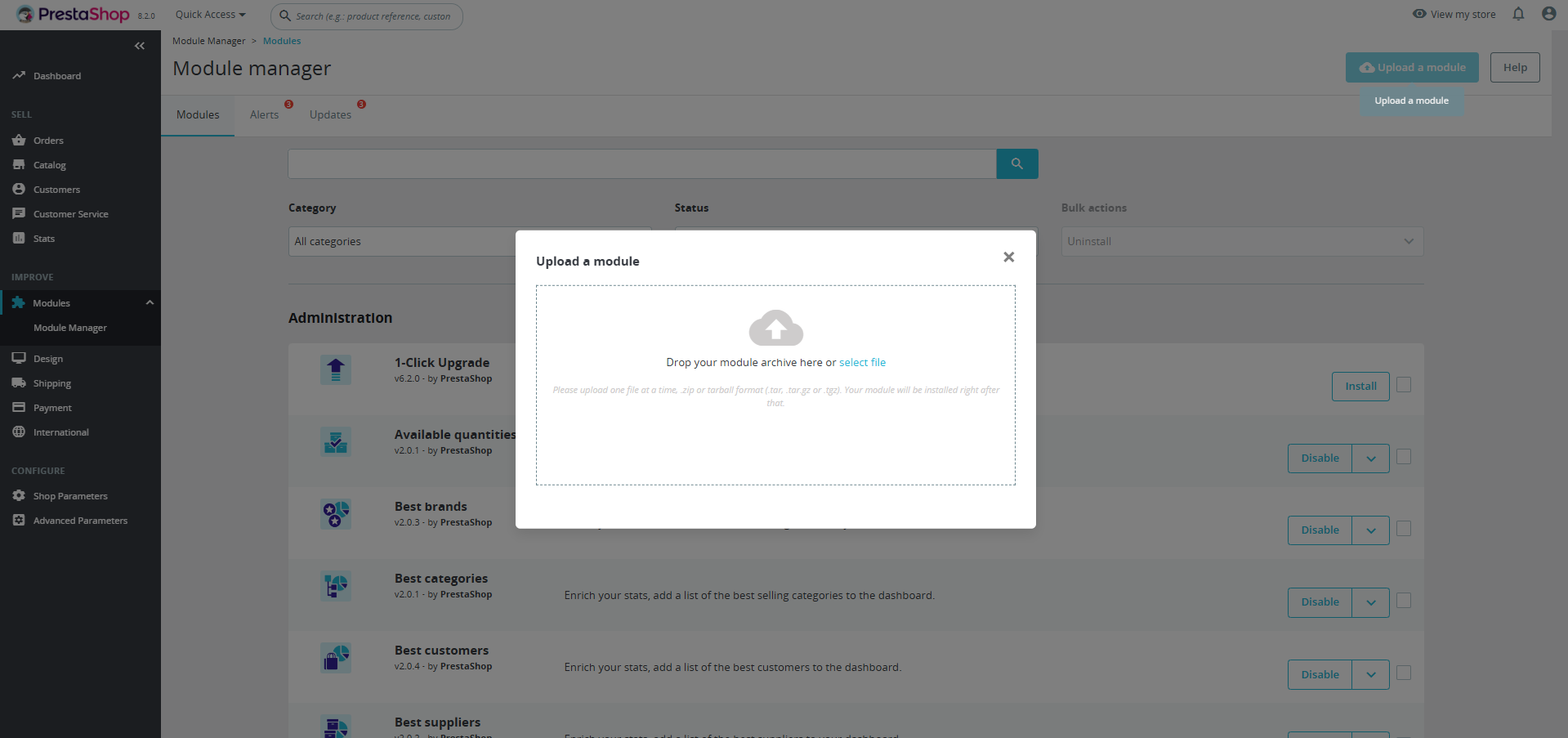
Configurar módulo: haz clic en "Configurar" para abrir la configuración del módulo CookiePal.
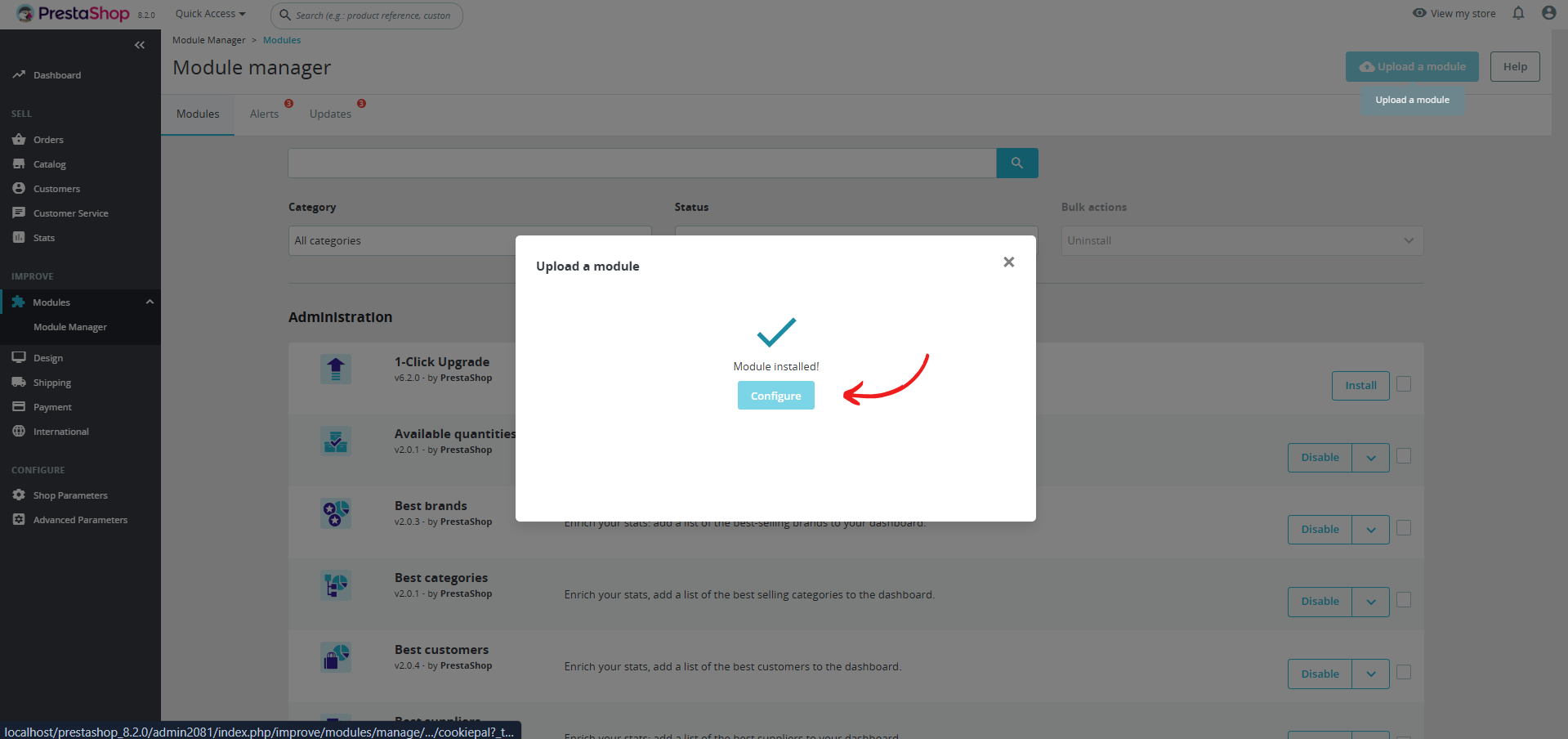
ID del sitio web: ingresa el ID del sitio web que copiaste en el primer paso.
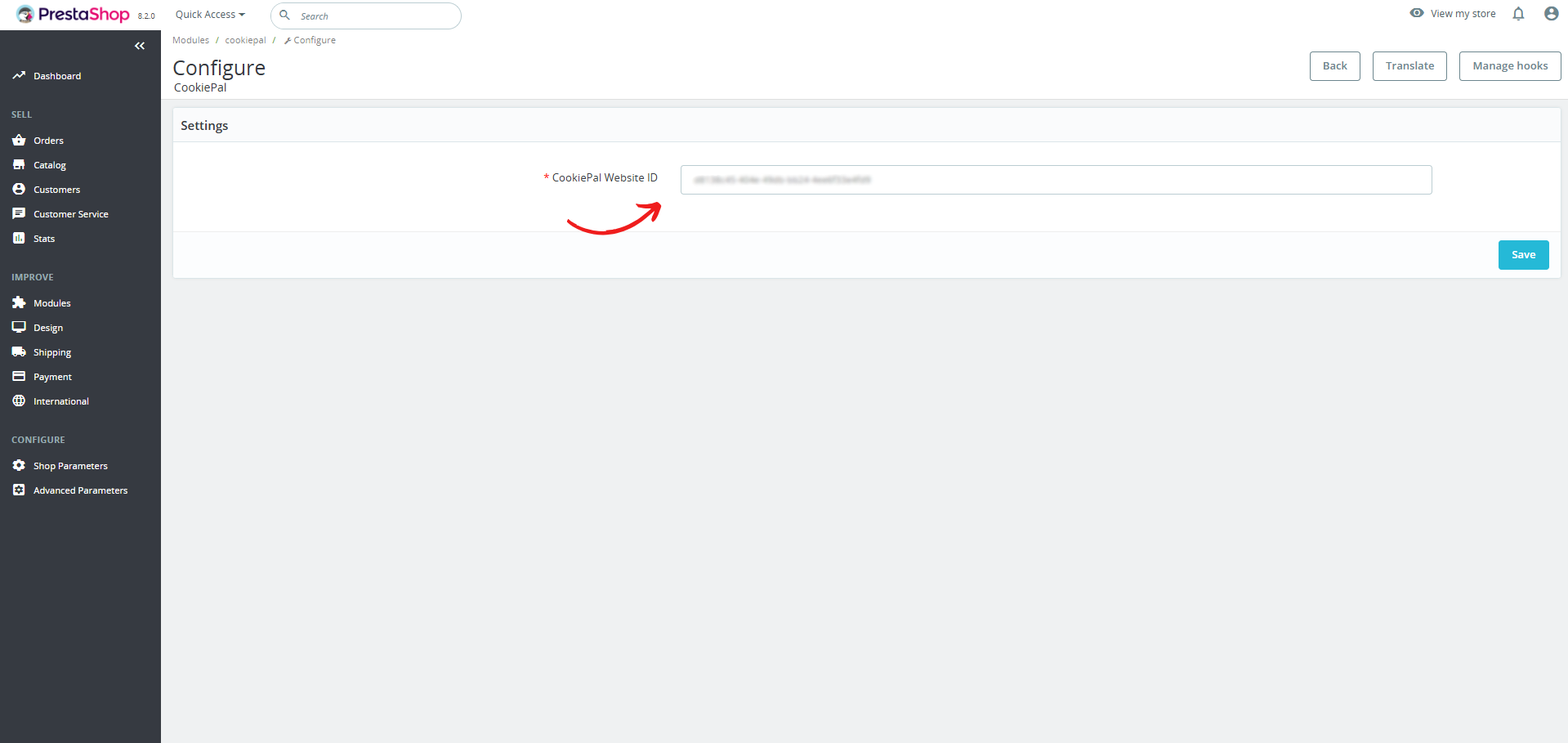
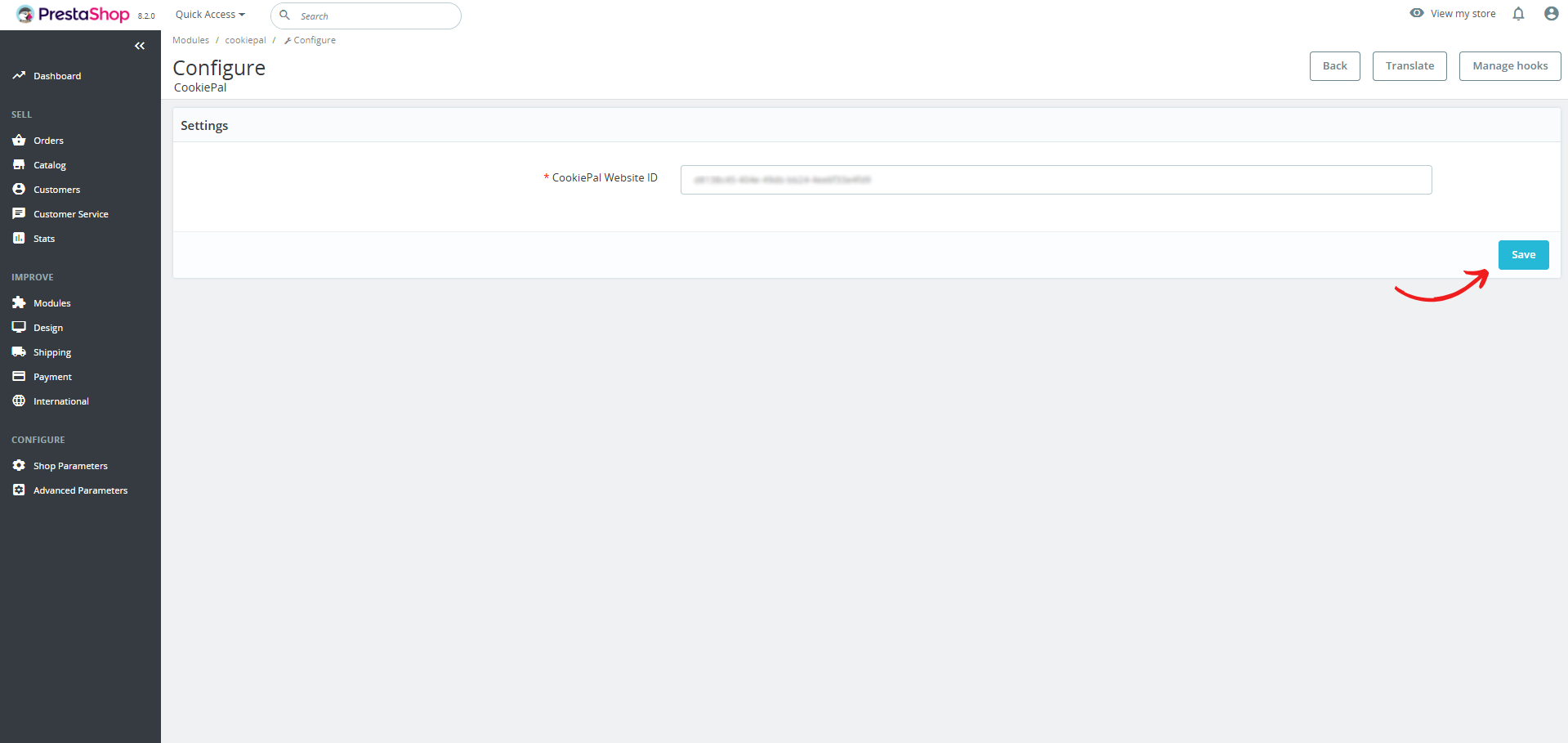
Guardar configuración: haz clic en "Guardar" para completar la configuración. El banner debería aparecer ahora en tu sitio web PrestaShop.
El módulo de PrestaShop instala el banner de CookiePal y admite flujos de consentimiento para GDPR, LGPD y CCPA cuando el dashboard de CookiePal está configurado para las regiones objetivo del sitio.
Verifica el banner de cookies
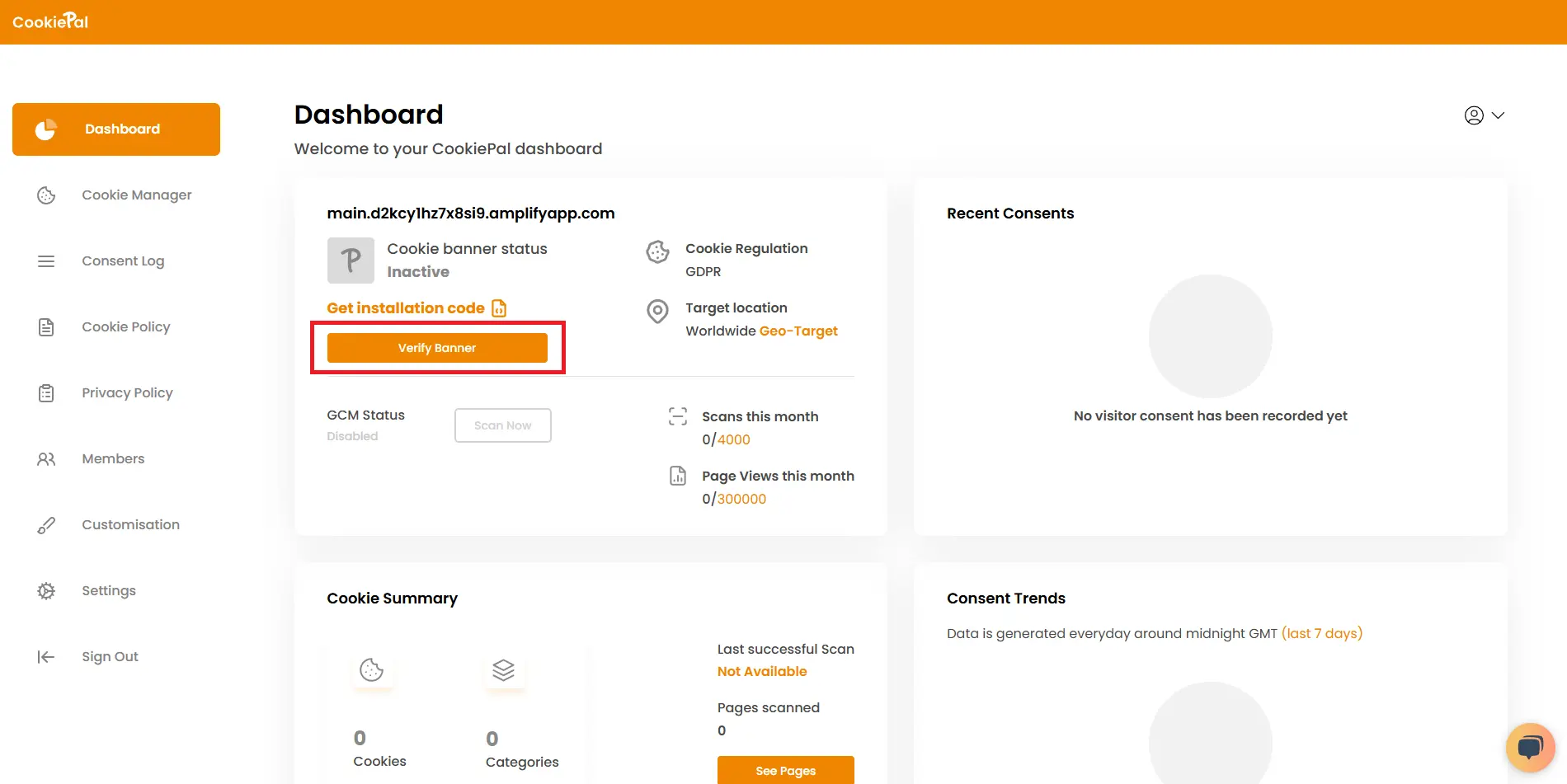
Verificar banner: vuelve al dashboard de CookiePal y verifica que el banner de cookies esté activo en tu sitio web. El estado debería cambiar a "Activo".
Implementación de la prueba: visita tu sitio web para confirmar que el banner de consentimiento de cookies aparece correctamente y que las cookies están bloqueadas hasta que el usuario otorgue su consentimiento.