

Instalación
Instrucciones de instalación y configuración
Cómo añadir un banner de cookies en una tienda Shopify
En esta guía te mostraremos la instalación de CookiePal en una tienda Shopify
Índice
Volver
Volver arriba
CookiePal te ayuda a garantizar que tu tienda Shopify cumpla con el GDPR, CCPA, LGPD y otras leyes de privacidad al gestionar el consentimiento de cookies de los usuarios. Esta guía te guiará por los pasos para integrar CookiePal con tu tienda Shopify.
Paso 1: Instala CookiePal
1. Navega hasta Administrador de Shopify > Aplicaciones.
2. Haz clic en la pestaña "Aplicaciones".
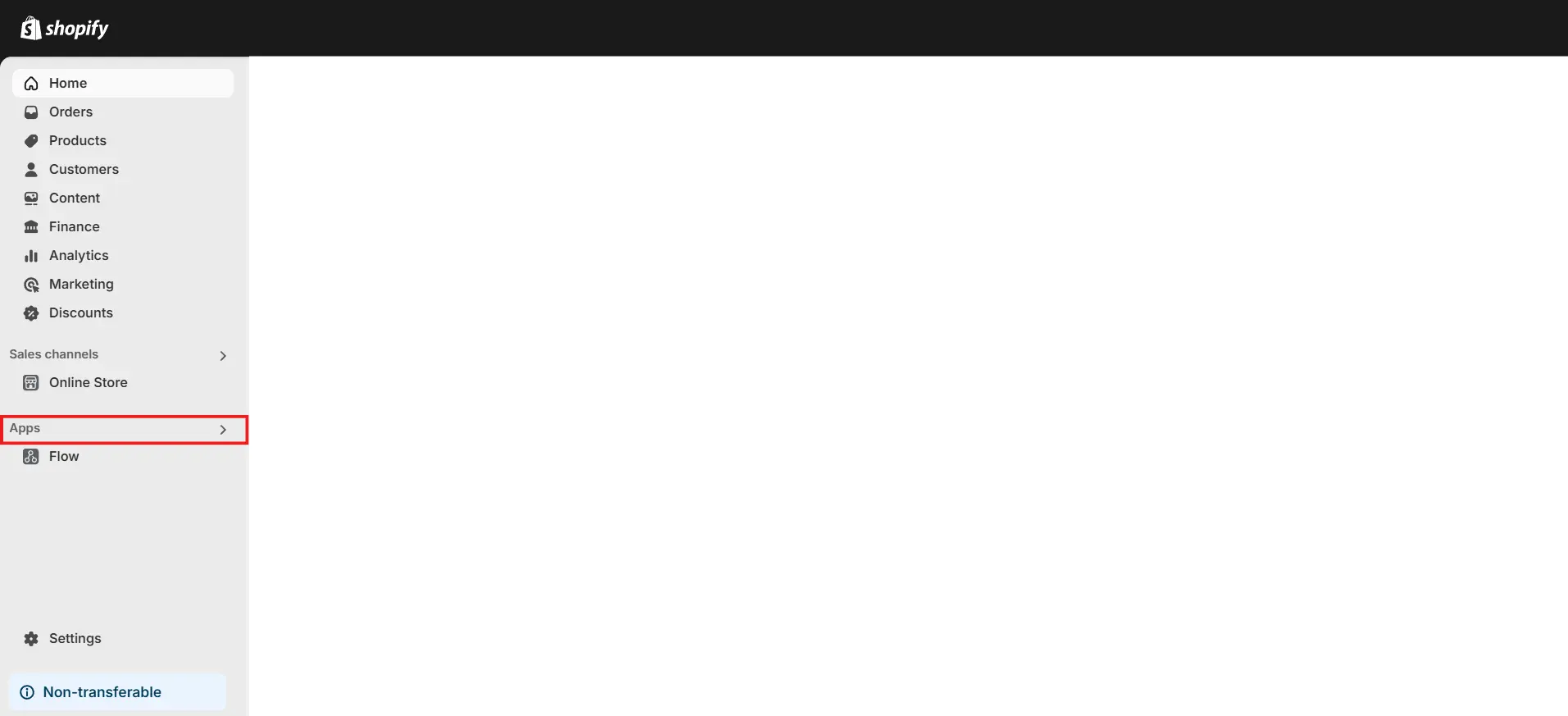
3. Escribe CookiePal en el cuadro de búsqueda y presiona Enter.
3. Una vez que hayas encontrado la aplicación, haz clic en CookiePal.
4. Haz clic en el botón Instalar en la página de la tienda de aplicaciones.
5. Haz clic en el botón Instalar aplicación en la página de oauth.
Una vez que completes estos pasos, habrás instalado correctamente CookiePal en tu tienda Shopify.
La app de Shopify instala el banner de CookiePal y admite flujos de consentimiento para GDPR, LGPD y CCPA cuando el dashboard de CookiePal está configurado para las regiones objetivo de la tienda.
Paso 2: configuración inicial
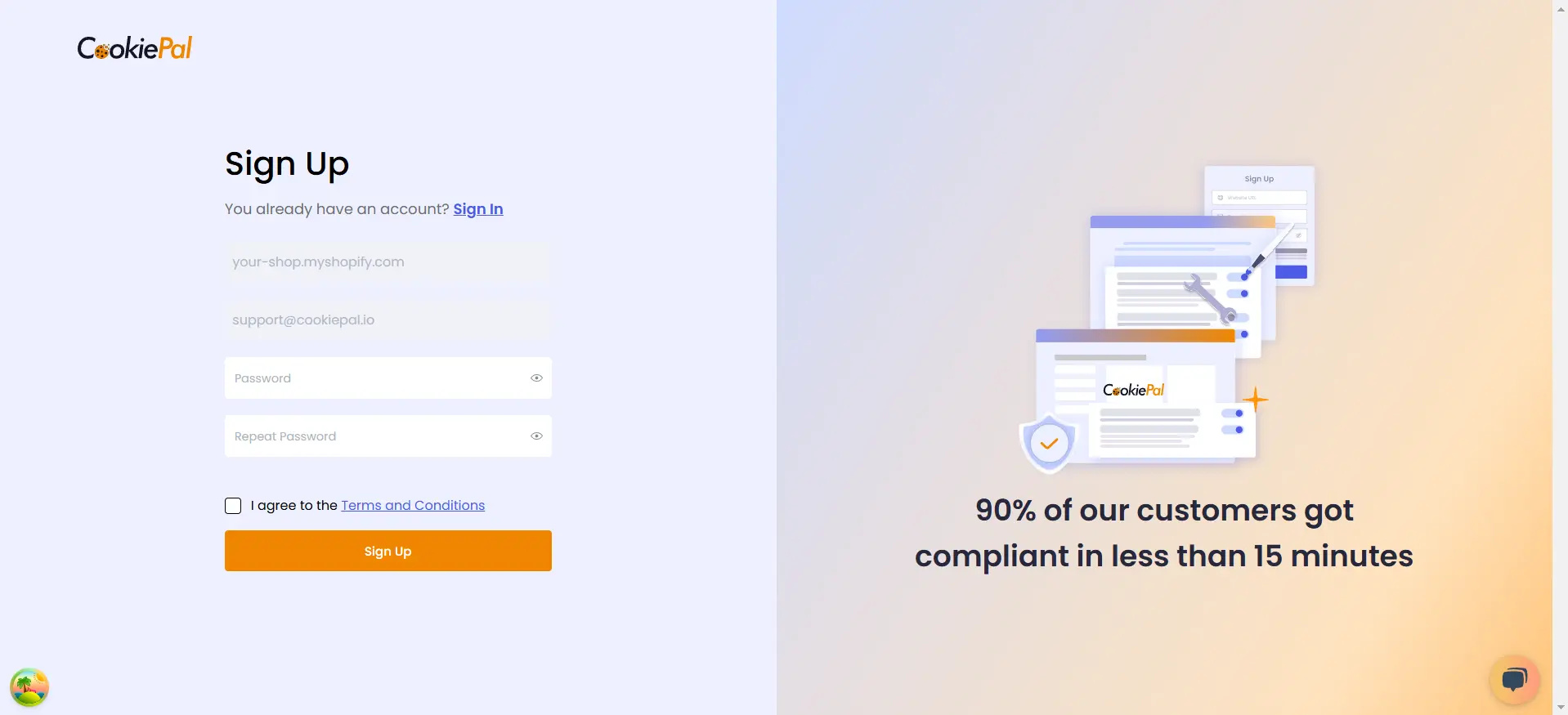
Creación de una nueva cuenta: después de la instalación, accederás a la página de registro, donde podrás crear una nueva cuenta sin esfuerzo.
Paso 3: Activación
1. Elige tu plantilla de banner y haz clic en Siguiente.
2. Personaliza tu banner.
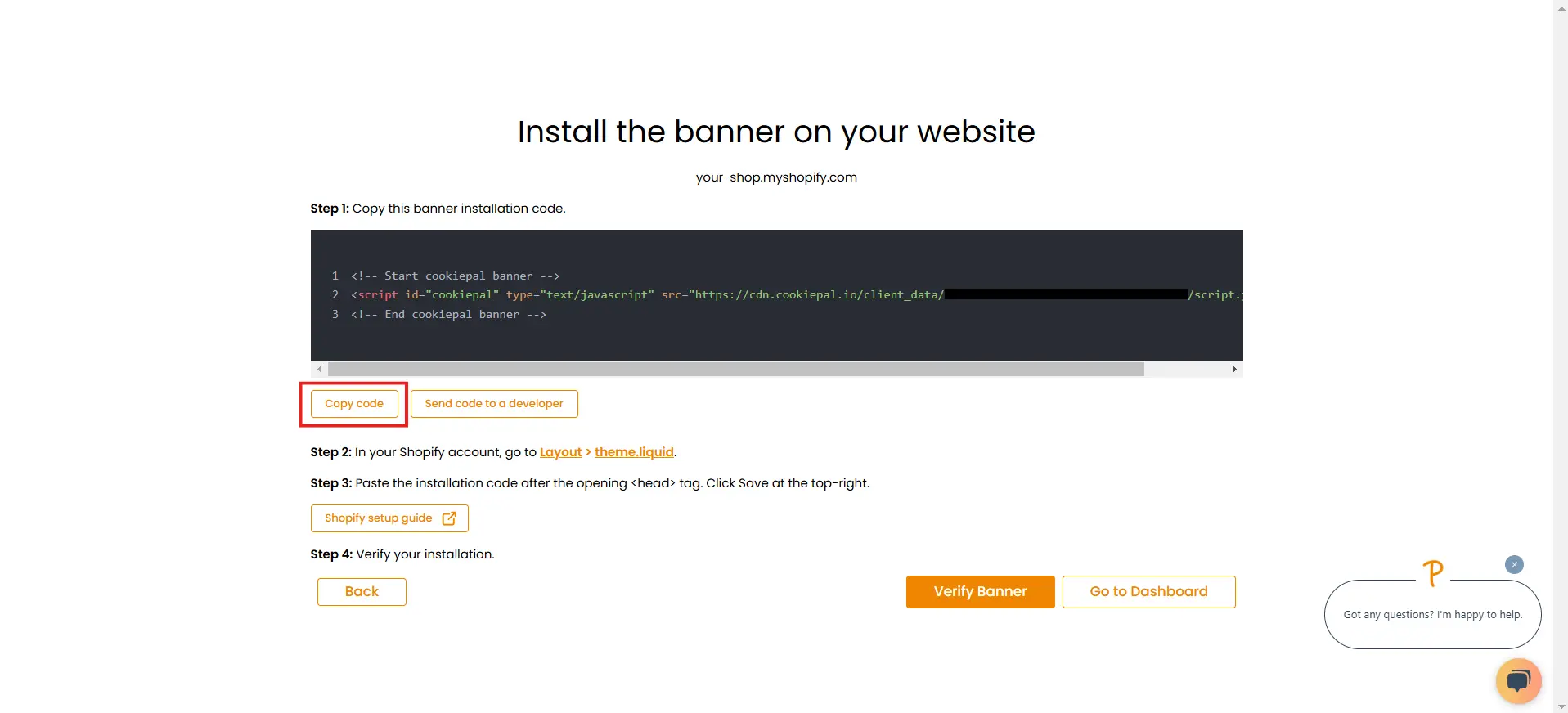
3. Copia el script CookiePal haciendo clic en el botón Copiar código.
4. O puedes ir a tu panel de Shopify, navegar a Tienda en línea en Canales de ventas y hacer clic en Temas.
4. O puedes ir a tu panel de Shopify, navegar a Tienda en línea en Canales de ventas y hacer clic en Temas.
5. En la sección Tema, haz clic en el icono del menú de tres puntos y selecciona Editar código en el menú desplegable.
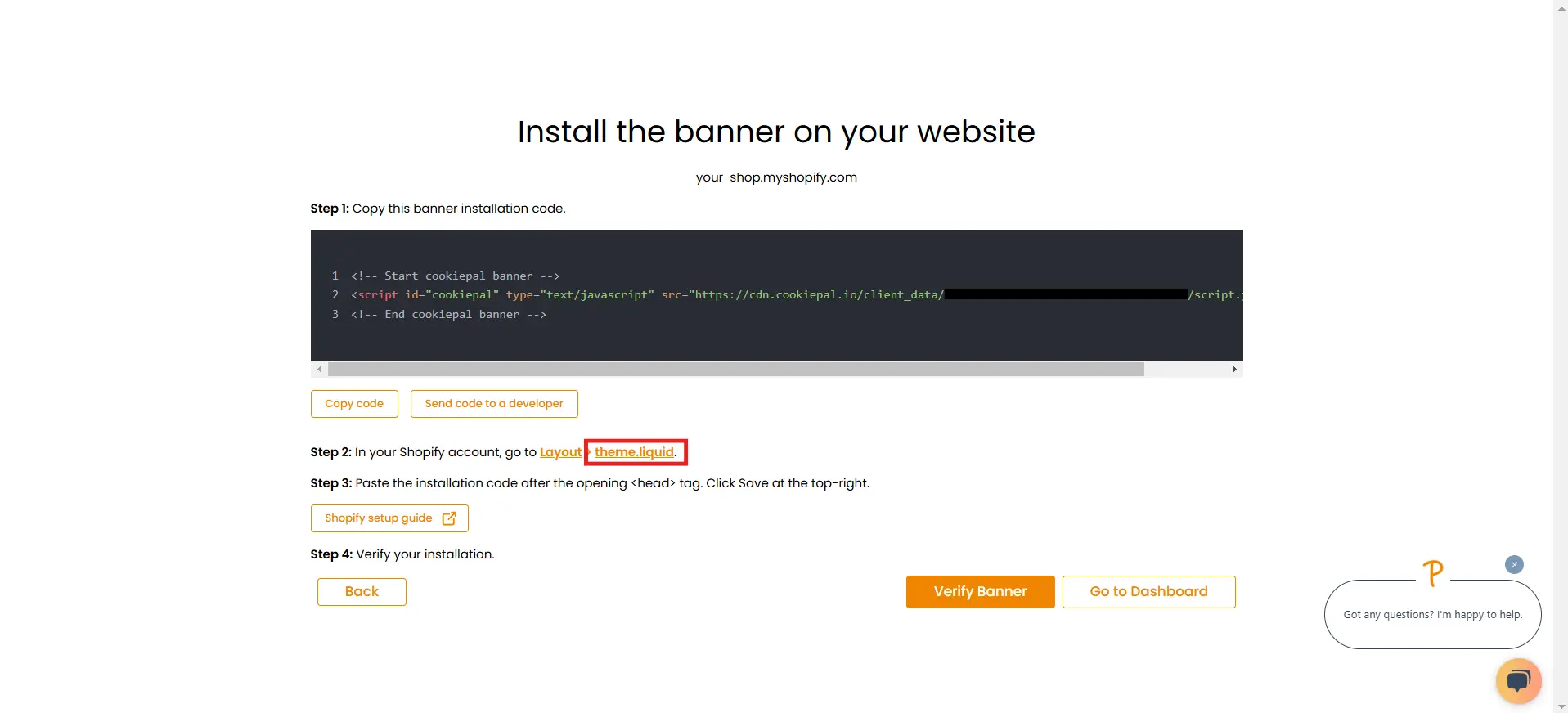
6. Elige el archivo theme.liquid en la sección Diseño.
7. Pega el código copiado dentro de la etiqueta principal inmediatamente después de abrir la etiqueta <head>.
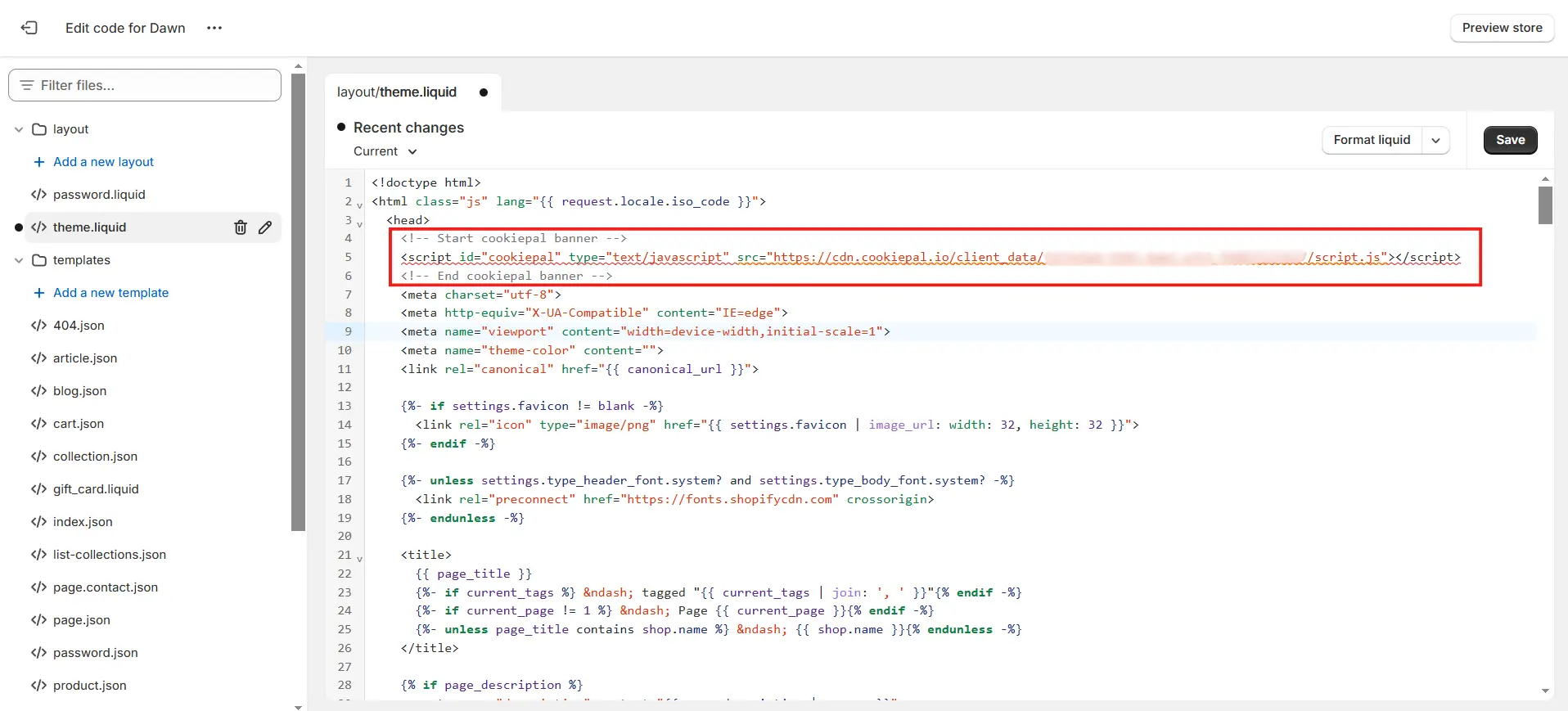
8. Haz clic en el botón Guardar en la esquina superior derecha.
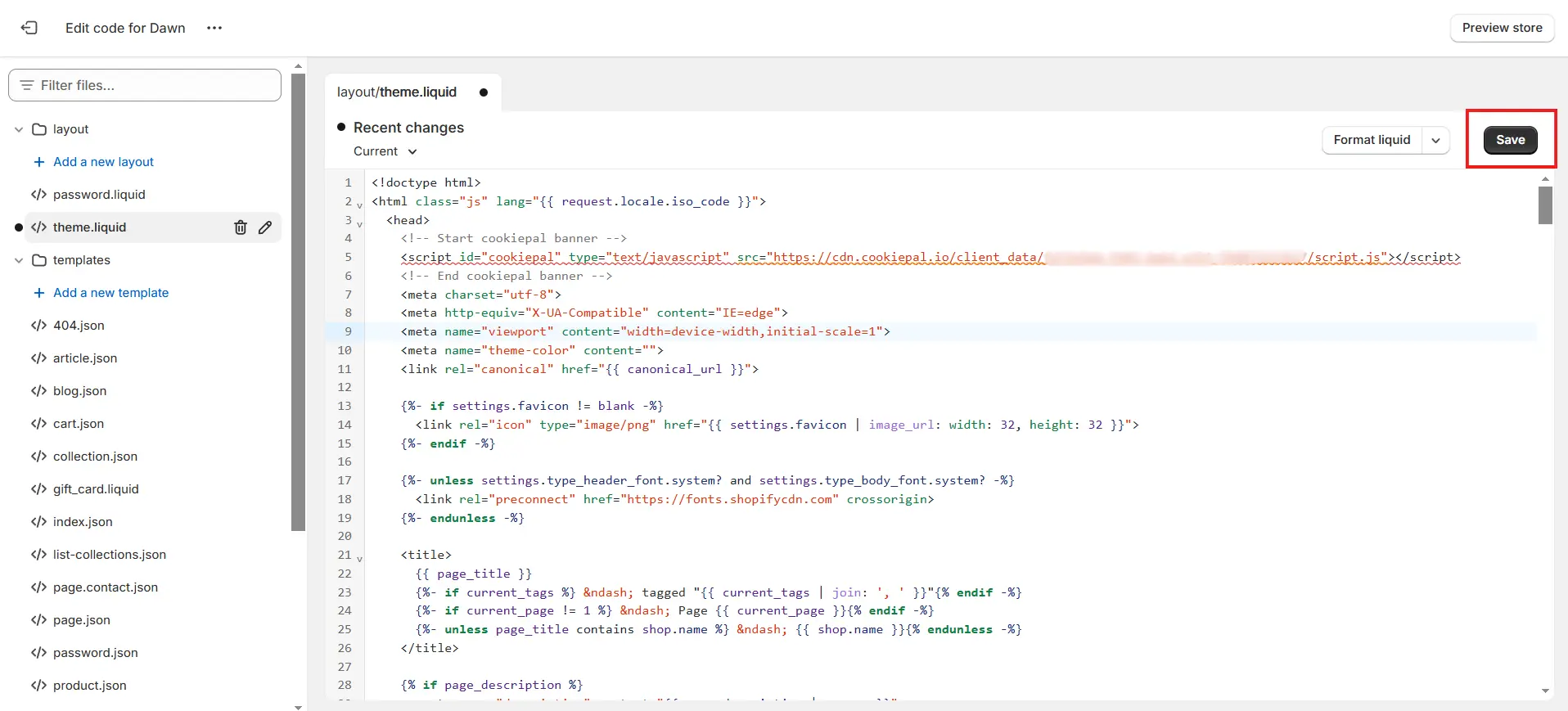
Paso 4: verificar la instalación
Ve al dashboard de CookiePal y verifica la instalación haciendo clic en el botón "Verificar banner".
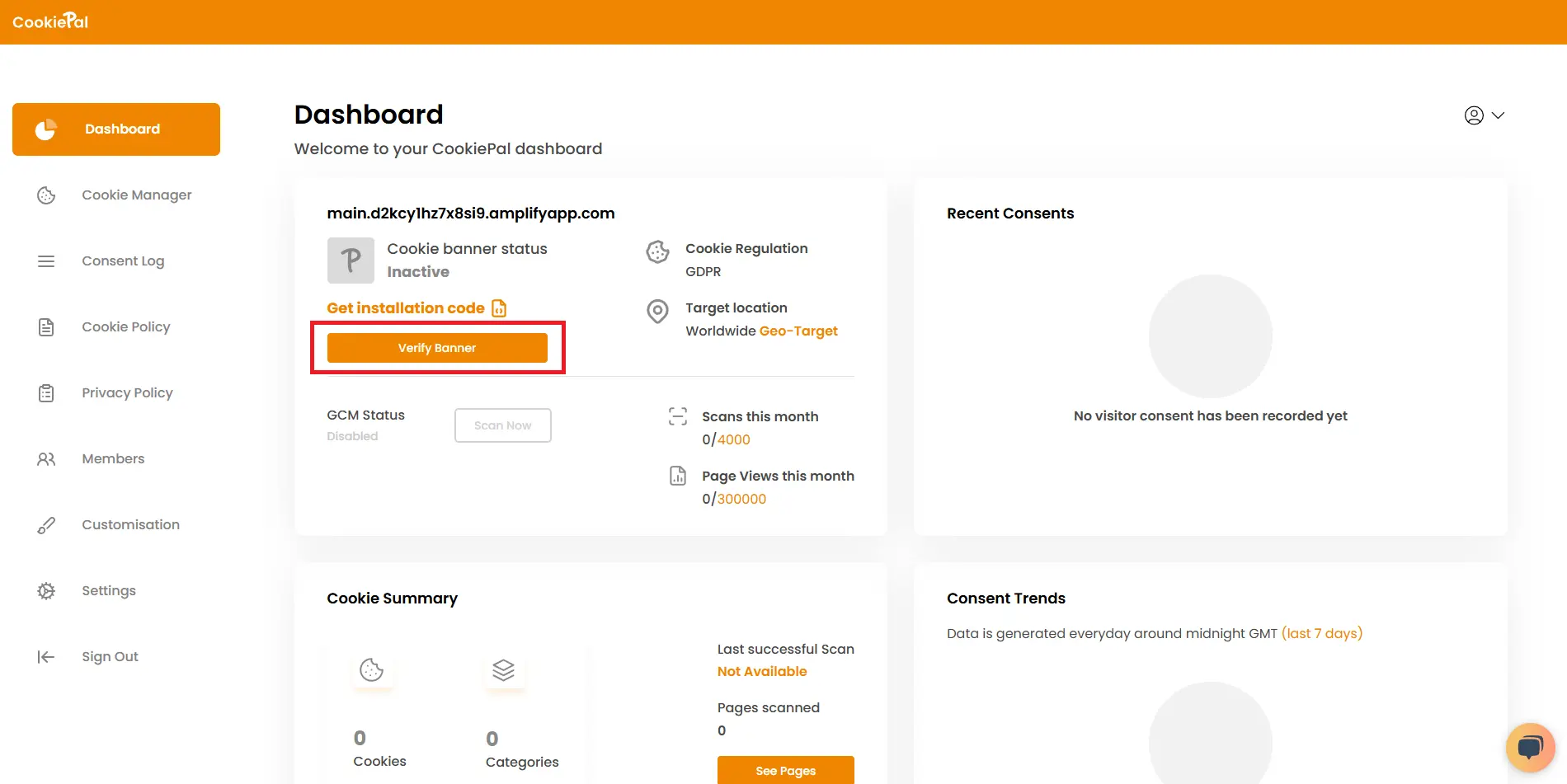
Paso 5: Verifica el banner de cookies
Implementación de prueba: visita tu sitio web para asegurarte de que el banner de consentimiento de cookies aparezca correctamente y de que las cookies estén bloqueadas hasta que el usuario otorgue su consentimiento.