

Features
Utilize advanced features and integrate CookiePal with other tools.
Google Consent Mode Troubleshooting
This guide aims to provide solutions to common errors that may arise during the Google Consent Mode integration process on your website.
Table of contents
back
to the top
This guide is intended for individuals who have integrated Google Consent Mode into their website. For guidance on configuring GCM, please consult this document.
Before diving into specific errors, check if your Google Consent Mode is configured correctly:
1. Sign in to your CookiePal account
2. Go to Dashboard > Settings.
3. Scroll to the Google Consent Mode (GCM) section.
4. Click the Check now button against Check GCM status to run a configuration check.
Consent mode not found
This error can occur in a few scenarios:
1. If you do not use Google tags/Google services such as Google Analytics or Google Ads, you can safely skip this step and leave the Support GCM option turned off. Google Consent Mode is only required if your website uses Google tags and you want to manage user consent for them.
2. Your website may have been unavailable when the verification ran. If your site was down or temporarily unreachable, try the check again once it is accessible.
3. Google Consent Mode may not be configured correctly on your website. In that case, we recommend verifying the implementation with Google Tag Assistant.
For step-by-step instructions, see the Google Tag Assistant section in the Verify GCM implementation guide. If Google Tag Assistant reports issues, follow its recommended instructions. If it does not report any issues, contact support@cookiepal.io.'
Default consent not set
This error typically occurs when the command that configures the user's default consent is not set.
1. If you are not using GTM, verify the inline/default command setup
- Either your CookiePal banner is not installed correctly or has been disabled, or you are using another banner that does not set the default command and you also do not have the default command installed directly on your website.
- Make sure your consent banner is active and that Google Consent Mode support is enabled in CookiePal.
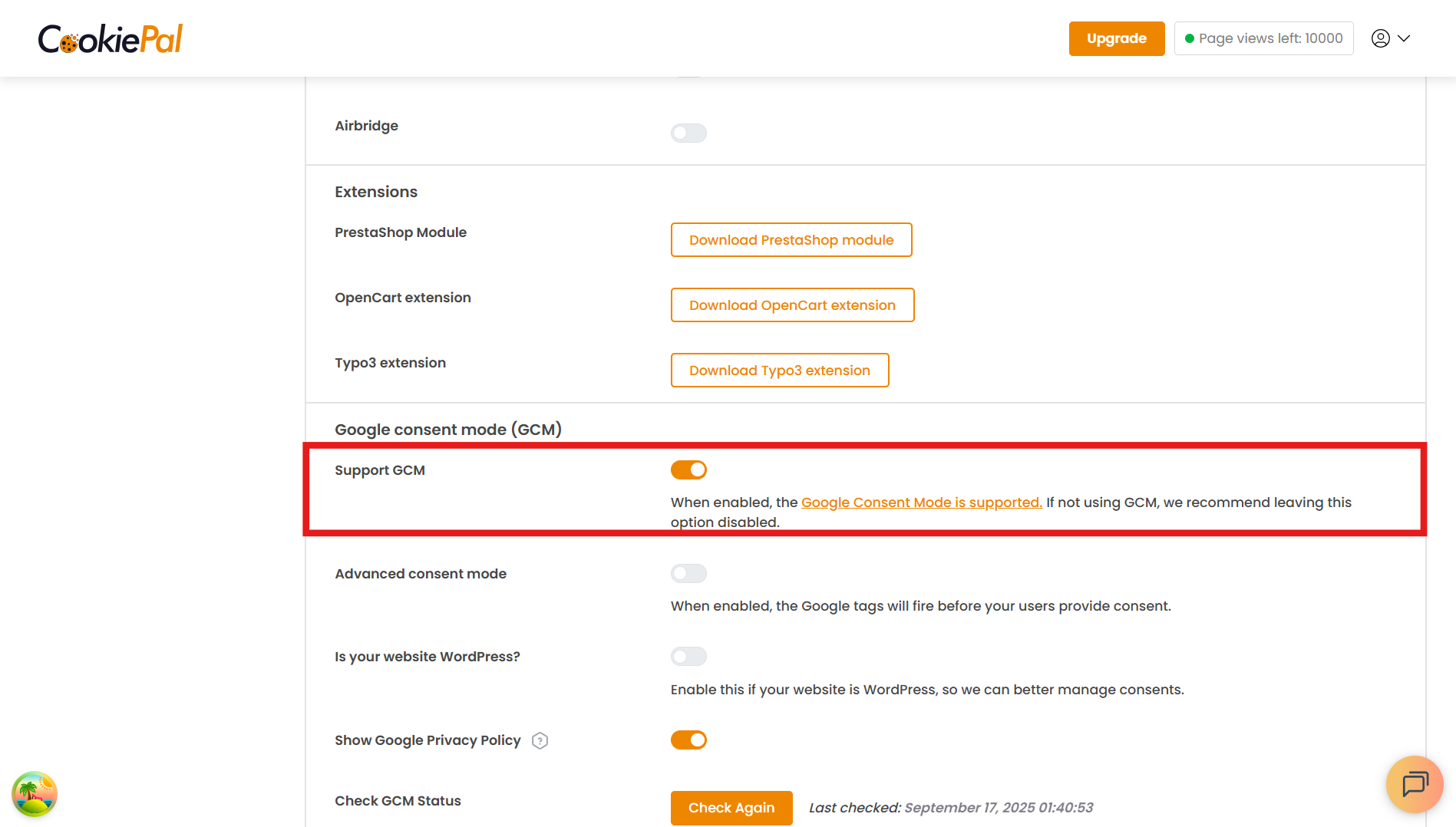
- If you need to install the command manually on the page, follow the Default command inline implementation guide.
2. If you installed it through GTM, verify the CookiePal CMP tag configuration
The default consent settings may have been manually modified, overridden, or misconfigured after the initial setup of the CookiePal CMP Tag in GTM. It may also happen if there are conflicts caused by additional scripts or configurations outside of GTM.
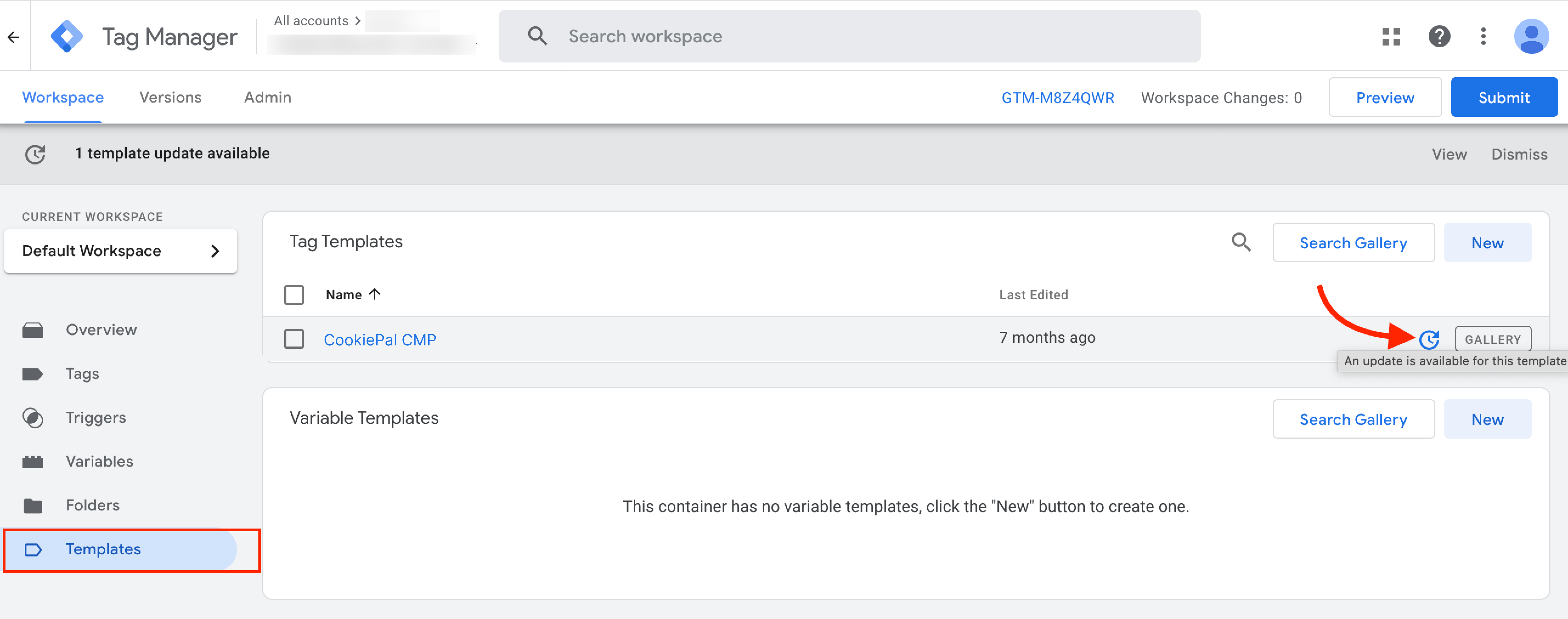
- In the Google Tag Manager workspace, go to Templates in the left sidebar and locate the CookiePal CMP template.
- Ensure the template is up to date by clicking the Update icon if available.
3. Check the default consent settings in GTM
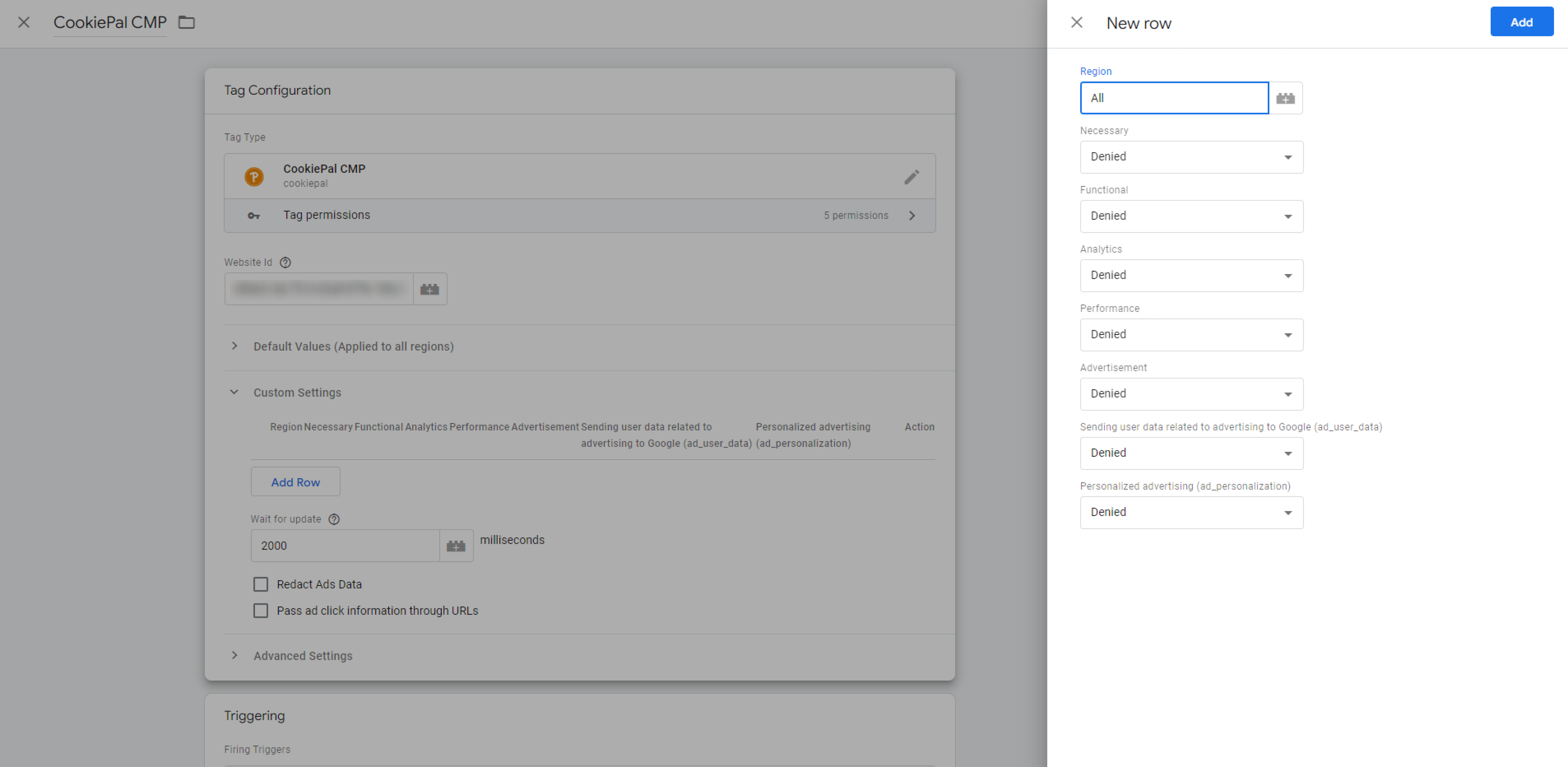
- Navigate to the Tags section in GTM and locate the CookiePal CMP tag.
- Click the edit icon to review the tag configuration.
- Ensure all cookie categories have a default consent state selected (e.g., Granted or Denied).
- Verify that the Region field includes valid ISO 3166-2 codes or is set to "All" for global targeting.
- Save the changes and test the tag in Preview mode to confirm the error is resolved.
Consent doesn't update
This error occurs when the consent preferences of users are not properly updated or recorded.
1. Make sure you have enabled Support GCM from the CookiePal Settings.
2. Update CookiePal CMP tag.
3. Ensure the CookiePal CMP tag is fired first, before any other tags on the website.
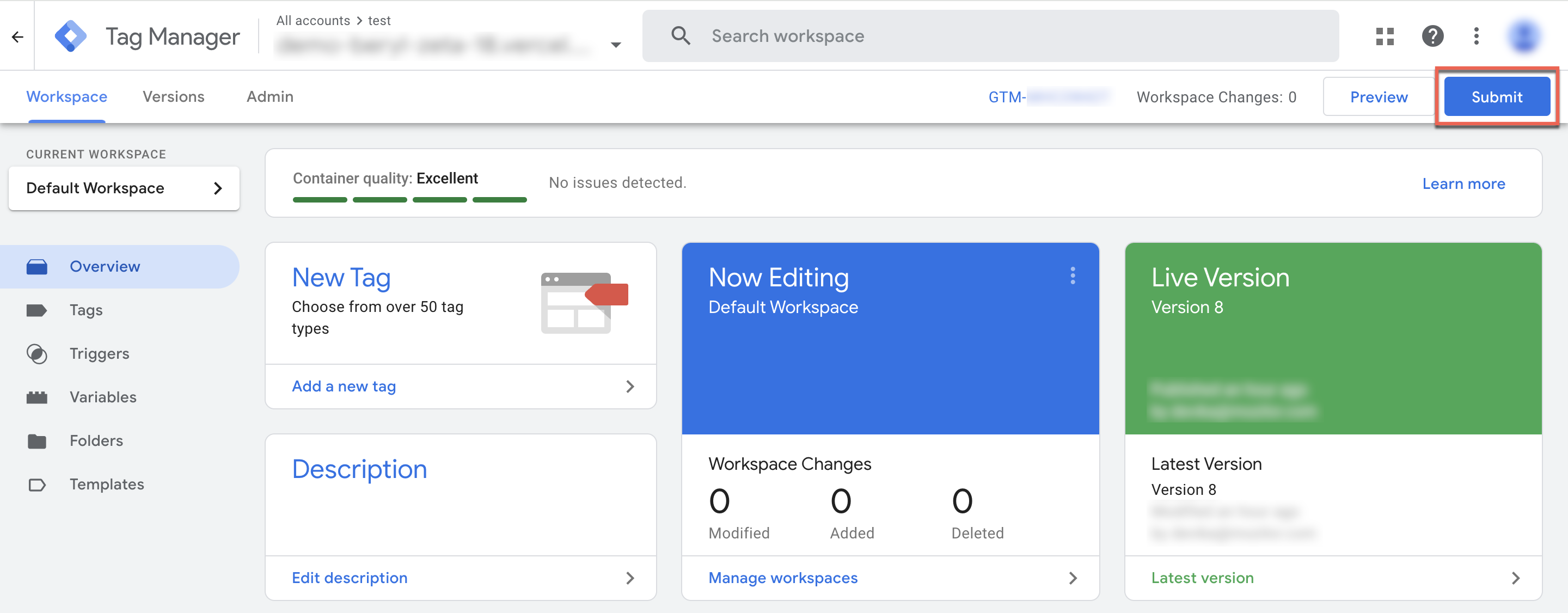
4. Make sure you submit and publish the changes to your Google Tag Manager container with every change you make.
Default consent set too late
This error occurs when the default consent command runs too late. It must run before any later gtag commands or events that may send measurement data, such as gtag('js', ...), gtag('config', ...), or gtag('event', ...).
First, verify whether the tag reported as late has adopted Google Tag Gateway. Use the Verify GTG enrollment instructions to check whether the hit URL is routed through your first-party GTG path.
If the late tag is GTG-enrolled, follow the Late consent signal detected after GTG enrollment instructions. If the tag has not adopted GTG, continue with the checks below.
Tag Assistant reports the error:

1. If CookiePal is installed directly on your website, check the script order
If you installed the CookiePal script directly on your website, this error can occur when tags or events run before CookiePal has time to set the default consent command. In that case, you should install the default command manually and place it before any Google tags and before any commands such as gtag('js', ...), gtag('config', ...), or gtag('event', ...).
Follow the Default command inline implementation guide for the recommended inline setup and placement order.
2. If installed via GTM, verify trigger order
- Ensure that the trigger, Consent Initialization – All Pages, is set only for the CookiePal CMP Tag so it fires before any other tags.

- Verify that all directly loaded tags are fired only after GTM is completely loaded.
- Open Tag Assistant debug console.
- In the Summary, select the Tags tab.
- Click a tag to check if it fired according to the consent settings.
If you have confirmed that the GTM configuration is correct, the error may be caused by scripts or tags that run outside the GTM container. In that case, either install the default command manually using the Default command inline implementation guide, or ensure that the GTM container loads before any measurement commands or events can fire. If you know which external tag is causing the issue, you may be able to move it into GTM, depending on your setup. In practice, placing the default command inline and in the correct order is the most reliable way to resolve this issue.
Additional Help
Refer to this troubleshooting guide by Google for additional help.