

Agencies
Onboard and manage your clients from the agency dashboard.
Add Many Customers at Once and Verify Their Domains
Upload a CSV of customers and prove you control each domain with a DNS TXT record.
Table of contents
back
to the top
When you add customers yourself, we first check that you control each website. You publish a DNS TXT record for every site, and we create the CookiePal account only once we find it. Nothing is created and no email goes to your customer before that. This guide covers adding up to 50 sites from a CSV file. Adding one customer with "One client" works the same way.
Prepare Your List
Make a CSV file with one row per website and these columns:
- email: the person who will own the customer's CookiePal account. Required.
- website: the customer's domain, for example example.com. Required.
- name: the name you use for this customer. Optional, it defaults to the website.
A file can hold up to 50 sites and must be smaller than 1 MB. Click "Download template" in the upload window to get a file with the right columns.
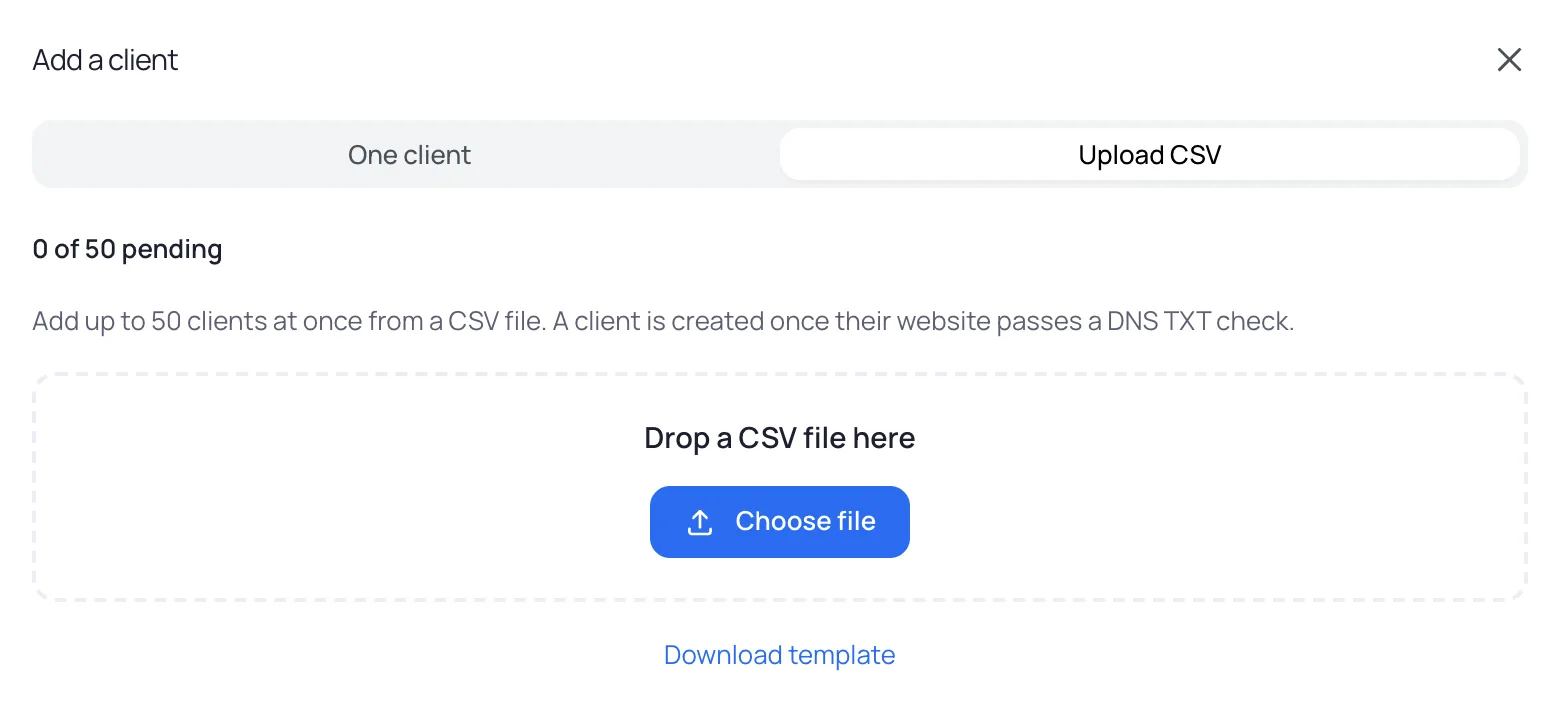
Upload the File
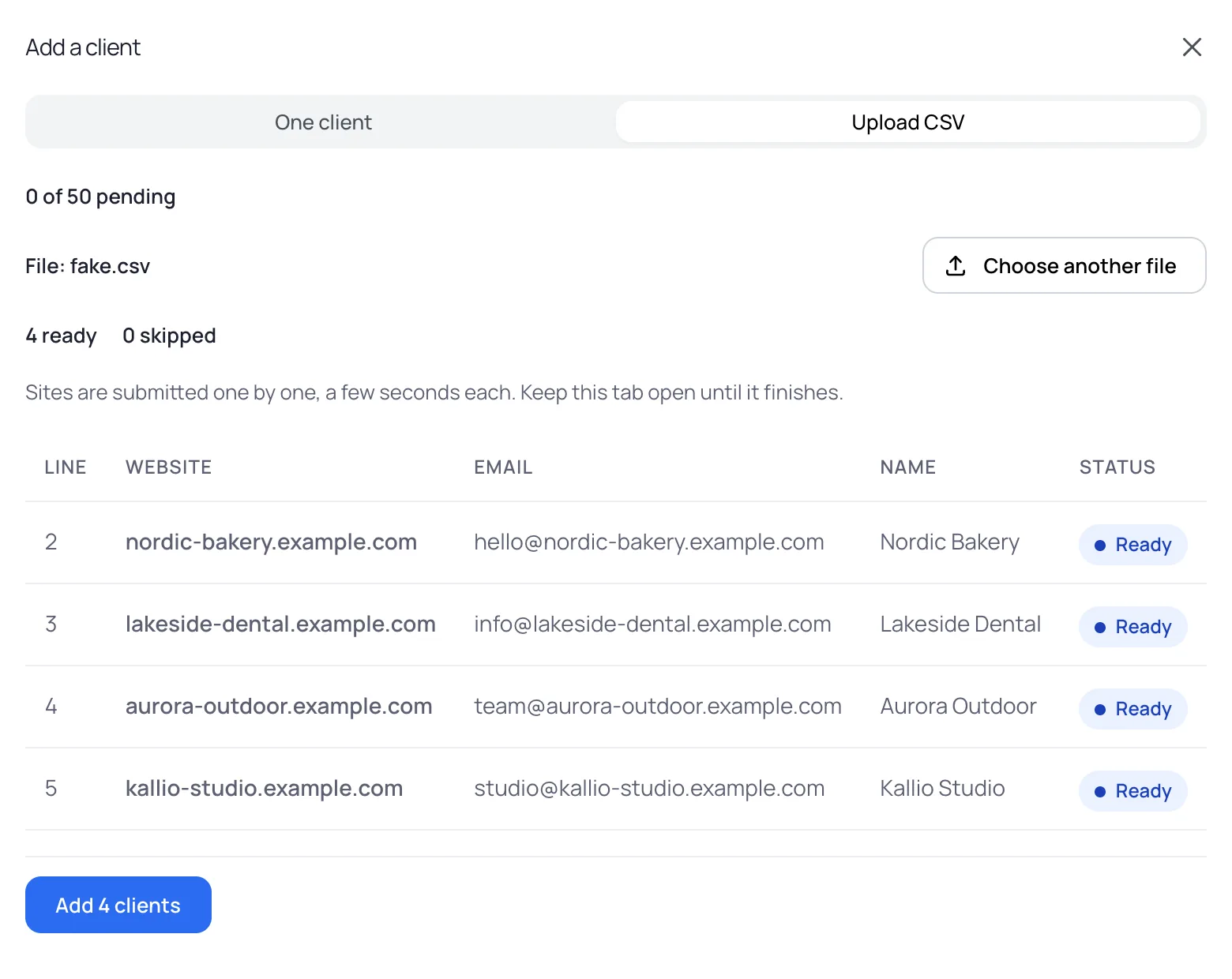
Open "Customers" in the sidebar. Click "Add client" and choose "Upload CSV". Drop your file in the window or click "Choose file".
We check the file before anything is sent. Rows marked "Skipped" repeat an earlier website or are already one of your clients. Click the "Add" button at the bottom, which shows how many clients will be sent, and keep the tab open while the sites go through one by one.
A row can be refused while the rest of the file goes through:
- Already registered: the website already has a CookiePal account.
- Already pending: the website is already waiting for a DNS record, for your agency or another one.
- Invalid email: the email address needs fixing.
- A row also fails when its email already has a CookiePal account.
Click "Download failed rows" to get these rows with the reason, fix them and upload that file.
Copy the DNS Records
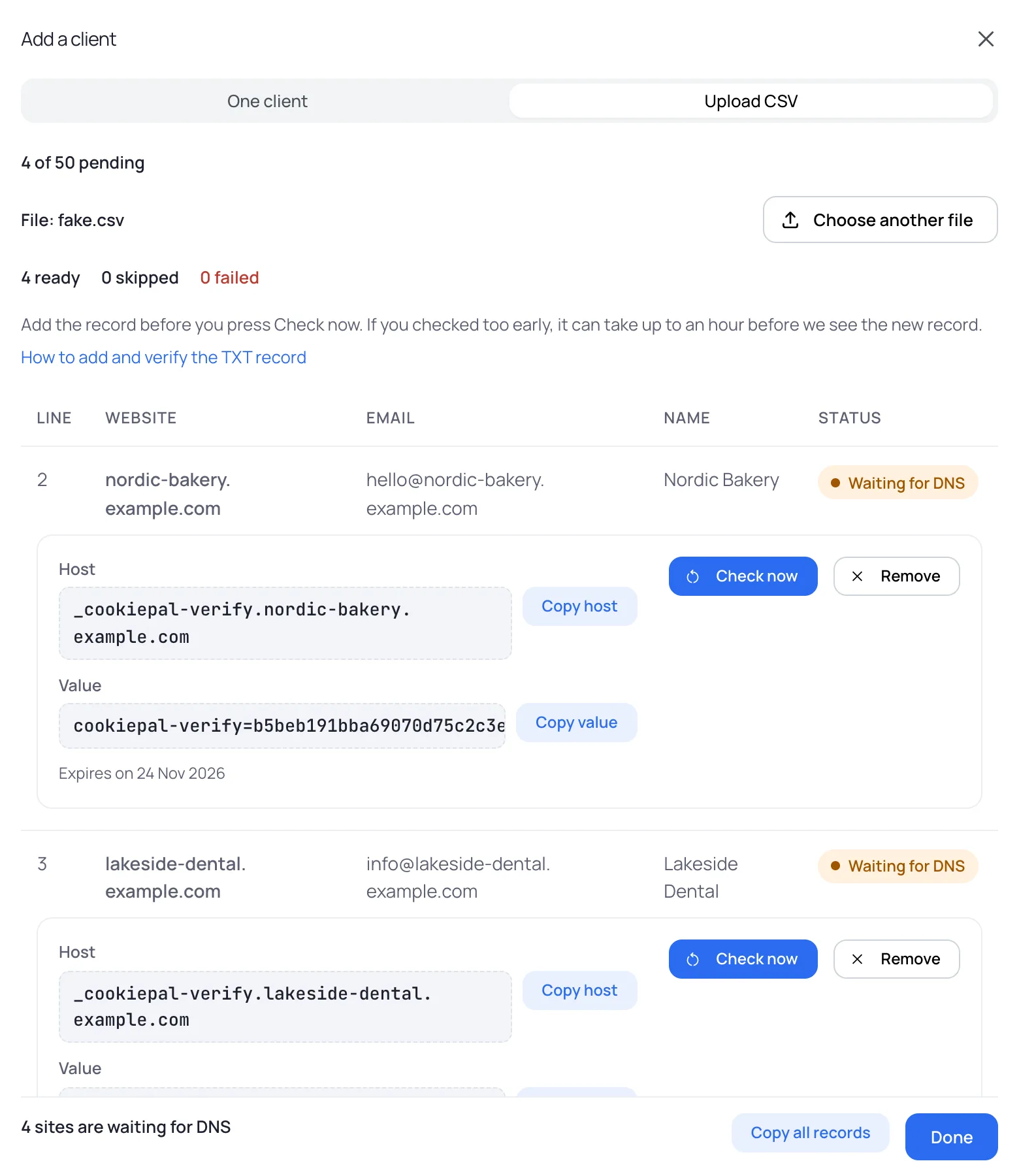
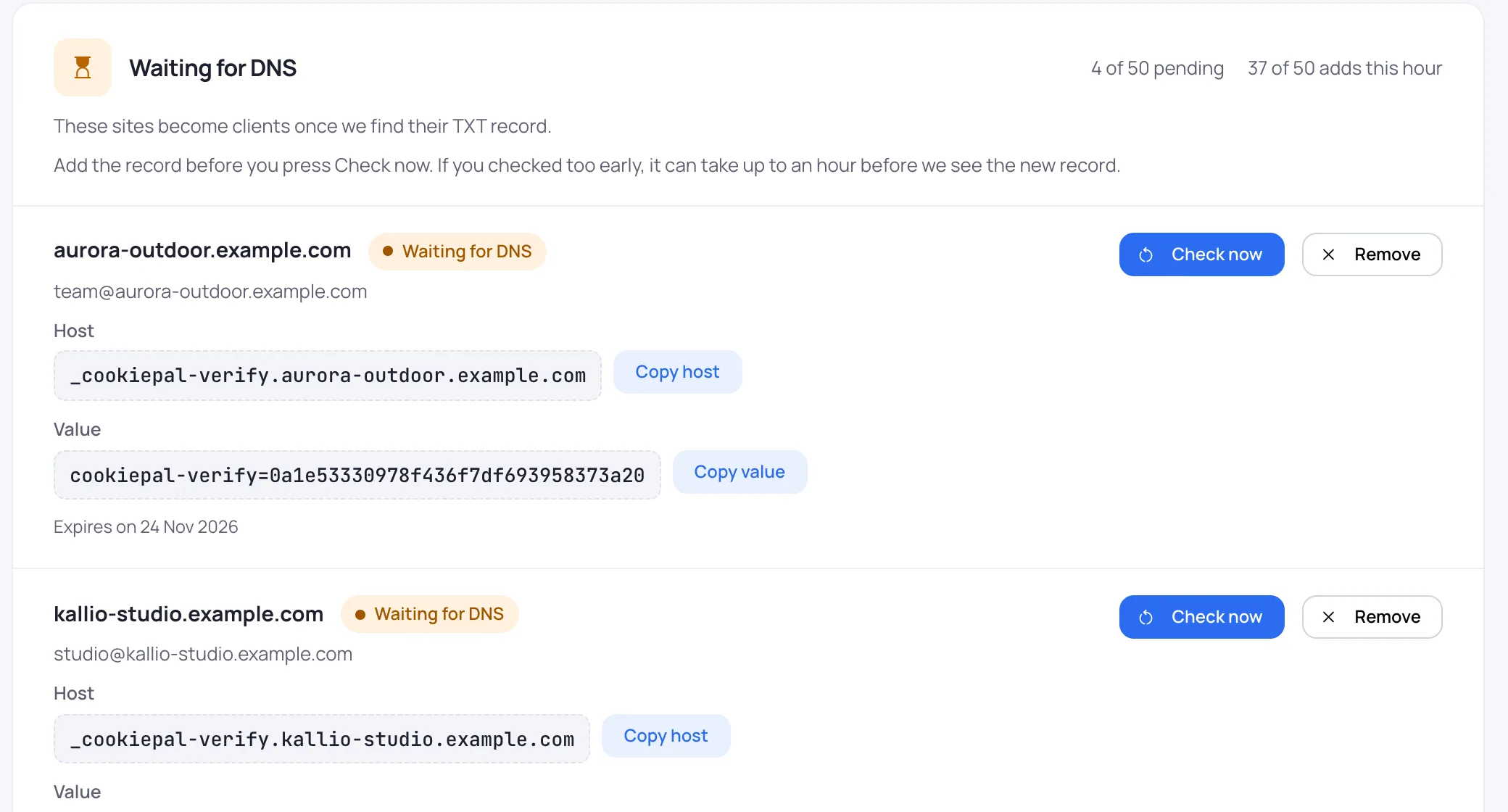
Each site you added shows "Waiting for DNS" and its own TXT record:
- Host: _cookiepal-verify. followed by the domain, for example _cookiepal-verify.example.com. We always use the domain without www.
- Value: cookiepal-verify= followed by a code made for this site only.
Use "Copy host" and "Copy value" on a row, or "Copy all records" at the bottom to copy every record at once, one line per site. You can close the window. The records stay in the "Waiting for DNS" section of the "Customers" page.
Add the Records at Your DNS Provider
Sign in where the domain's DNS is managed. That is usually the registrar where the domain was bought, the hosting company or a DNS service. If your customer manages it, send them the records.
Add one new record per site, for example:
- Type: TXT
- Name or Host: _cookiepal-verify
- Value or Content: cookiepal-verify=7d2f0c9a41b84e6f9c3a5b1e8d7f2a60
- TTL: leave the default
Most providers add the domain to the name for you. If yours asks for the full name, paste the whole host. Leave any other TXT records on the domain as they are.
Press Check Now
Add the record at your DNS provider before you press "Check now". Then click "Check now" on the site, in the upload window or under "Waiting for DNS".
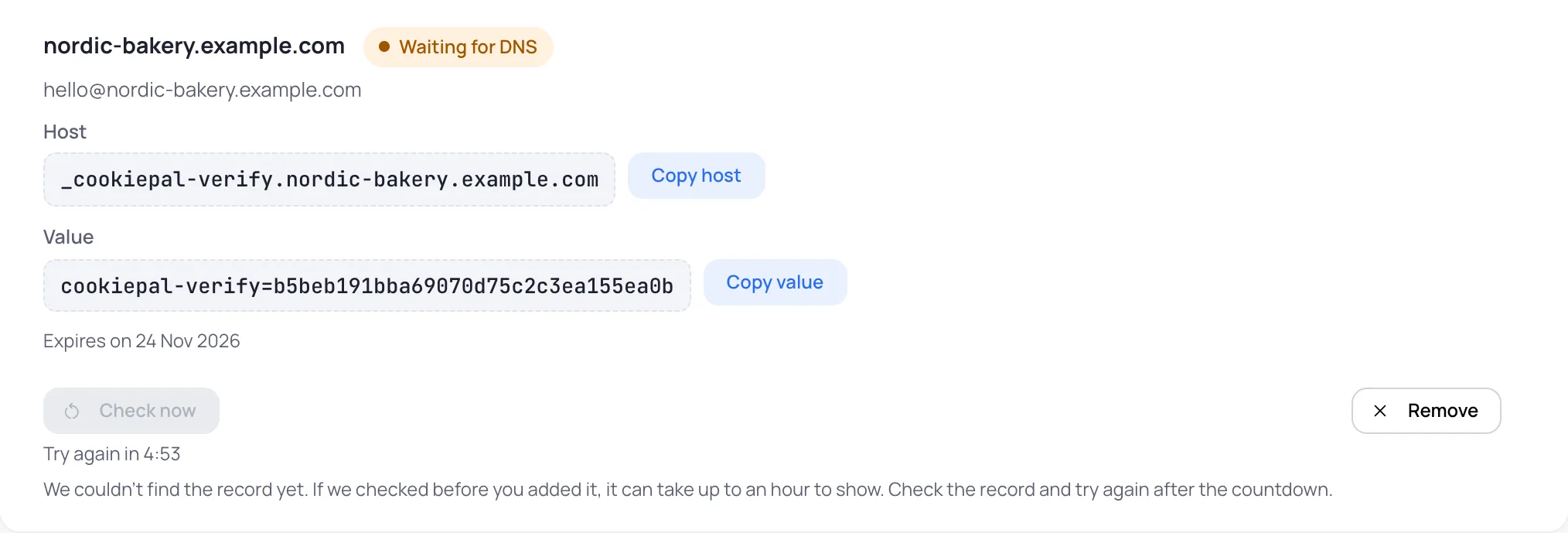
If we can't find the record yet, check that the host and value match exactly. If we checked before you added the record, it can take up to an hour before we see it. You can check each site once every 5 minutes, and the button shows "Try again in" with a countdown until the next check. Try again after the countdown.
Expiry and Limits
Each site waits for its record for 7 days. The date shows under the record, after "Expires on". After that the record no longer works and the site leaves the list. Add it again to get a new record.
You can have up to 50 sites waiting for DNS at a time, and add up to 50 sites an hour. The counters show where you are, for example "12 of 50 pending". If you reach a limit during an upload, it stops and the rows left show "Not started". Download them and upload them again once some sites are verified or the hour has passed.
Remove a Site
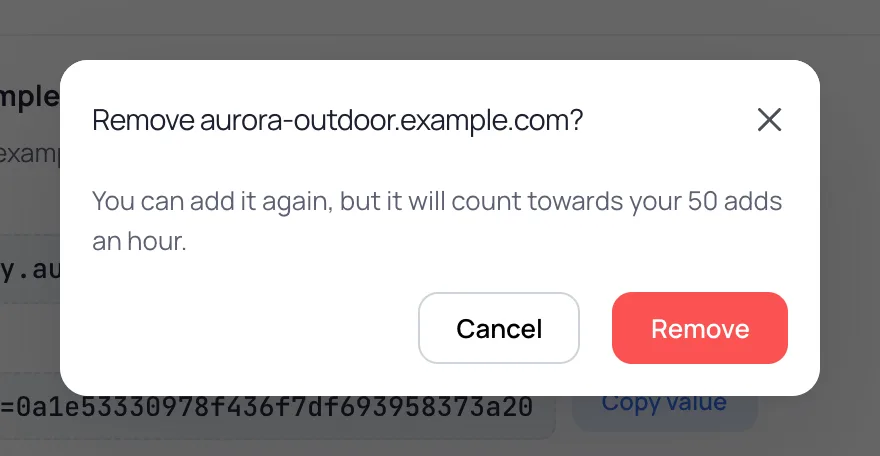
Mistyped a website or email, or a site that will never get its record? Click "Remove" next to it, under "Waiting for DNS" or in the upload window, and confirm. The site leaves the list.
You can add a removed site again, and it gets a new record. Removing a site does not give back the add, so it still counts towards your 50 adds an hour.
Claimed by the Owner
If the website's owner signs up to CookiePal and adds the site before your check passes, the owner keeps it. The site then shows "Claimed by the owner, please contact them" and can no longer be verified.
Ask the owner to link the site to your agency with your partner code, as described in Link Clients With Your Partner Code.
After the Check Passes
When we find the record, we create the customer's CookiePal account and send one invite email to the address in your list. Your customer gets no email from us before this.
The site then moves to the list on the "Customers" page, where you can open the account and set up the banner. See Open a Client's Account and Install the Banner.
Any Questions Left?
Feel free to contact us and we will answer all of yours remaining questions!
Contact Us